Ever felt like your network is a tangled mess of cables and confusing settings? You’re not alone. In today’s connected world, a robust and efficient network is more than a luxury; it’s a necessity. From streaming your favorite shows in 4K to managing a bustling small business, the backbone of your digital life hinges on reliable network infrastructure. That’s where a Ubiquiti UniFi network switch truly shines, bringing order and intelligence to your connectivity.
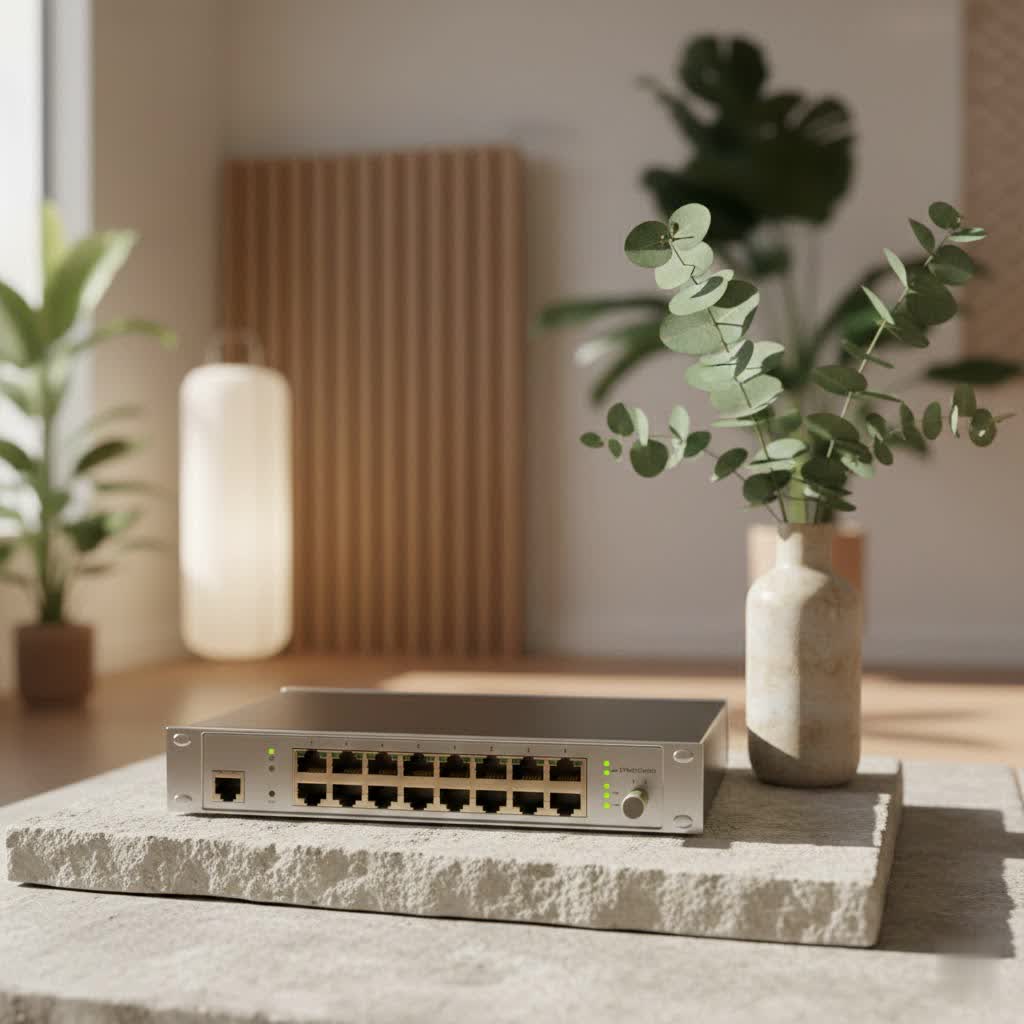
Ubiquiti has carved out a unique niche in the networking world, offering powerful, enterprise-grade features that are surprisingly accessible. Their UniFi network switches are a cornerstone of this philosophy, providing seamless integration into the UniFi ecosystem for centralized management, advanced capabilities, and unparalleled flexibility. Whether you’re a seasoned IT professional or a home user looking to elevate your setup, understanding these intelligent devices can transform your network experience. We’re here to demystify Ubiquiti UniFi switches, guiding you through their diverse range, helping you choose the perfect fit, walking you through basic setup, and even tackling common troubleshooting scenarios to ensure your network runs smoothly and securely.
What Exactly is a Network Switch, Anyway?
At its core, a network switch is a device that connects other devices together on a computer network by using packet switching to receive, process, and forward data to the destination device. Think of it as the central hub of traffic control in your network. Instead of simply broadcasting data to every connected device like older hubs, a switch intelligently directs traffic only to where it needs to go, significantly reducing congestion and improving overall efficiency.
Ubiquiti takes this concept a step further with its UniFi switches. They aren’t just hardware; they’re integral components of a Software-Defined Networking (SDN) solution managed by the UniFi Network Controller. This means you get a unified platform to oversee your entire network – switches, access points, security gateways, and more – from a single, intuitive interface. This centralized control transforms complex network management into a streamlined, user-friendly experience, making it easier to deploy, configure, and monitor your network devices.
Diving Deep: The Ubiquiti UniFi Switch Family
The Ubiquiti UniFi family offers a wide array of switches, each designed to meet specific needs, from compact home setups to demanding enterprise environments. Understanding the different series and their unique strengths is key to making the right choice for your network.
UniFi Flex & Lite Switches: Small but Mighty
|
Our Picks for the Best Network Switch in 2026
As an Amazon Associate I earn from qualifying purchases.
|
||
| Num | Product | Action |
|---|---|---|
| 1 | NETGEAR 8-Port Gigabit Ethernet Unmanaged Essentials Switch (GS308) - Home Network Hub, Office Ethernet Splitter, Plug-and-Play, Silent Operation, Desktop or Wall Mount |

|
| 2 | UGREEN 16 Port Gigabit Switch, Plug & Play Ethernt Switch, Standard/VLAN Mode, Unmanaged, Sturdy Metal, Fanless Quiet, Desktop & Wall Mount Network LAN Splitter Hub for Laptop, Printer, NAS, Router |
|
| 3 | TP-Link 8 Port Gigabit Ethernet Network Switch - Ethernet Splitter - Plug & Play - Fanless - Sturdy Metal w/ Shielded Ports - Traffic Optimization - Unmanaged - Lifetime Protection (TL-SG108) |
|
| 4 | TP-Link TL-SG105S-M2 - 5-Port Multi-Gigabit 2.5G Ethernet Switch - Unmanaged Network Switch - Ethernet Splitter - Plug & Play - Desktop/Wall Mount - Silent Operation |
|
| 5 | TP-Link 5-Port Gigabit Ethernet Easy Smart Switch- Plug and Play - Desktop - Sturdy Metal w/Shielded Ports - Limited Lifetime Replacement (TL-SG105E), Black… |
|
| 6 | TP-Link 24 Port Gigabit Ethernet Switch Desktop/ Rackmount Plug & Play Shielded Ports Sturdy Metal Fanless Quiet Traffic Optimization Unmanaged (TL-SG1024S) |
|
| 7 | BrosTrend 2.5Gb Switch, 8 Port Network Switch 2.5 Gigabit, Unmanaged Ethernet Switch for Game Console, NAS, PC, Computer Networking Switch Plug & Play Fanless, Desktop Wall Mount, Lifetime Protection |
|
| 8 | UGREEN Ethernet Switch, 5 Port Gigabit Ethernet Splitter, Plug & Play, Wall Mount & Desktop Network Switch Hub, Unmanaged, Compact, with LED, Fanless Quiet, for Internet Cable, Laptop, Router, NAS |
|
| 9 | TP-Link Litewave 5 Port Gigabit Ethernet Switch - Desktop Ethernet Splitter - Unshielded Network Switch - Plug & Play - Fanless Quiet - Unmanaged (LS1005G) |
|
| 10 | TP-Link TL-SG105, 5 Port Gigabit Unmanaged Ethernet Switch, Network Hub, Ethernet Splitter, Plug & Play, Fanless Metal Design, Shielded Ports, Traffic Optimization |
|
If you’re just dipping your toes into the UniFi ecosystem or need to extend connectivity in a specific area without a lot of fuss, the Flex and Lite series are your go-to. These switches are known for their compact size, often fanless operation for silent performance, and straightforward Power over Ethernet (PoE) capabilities. They are perfect for powering a few UniFi Access Points (APs) or security cameras in a home office, living room, or small retail space, blending seamlessly into any environment without drawing attention. The UniFi Flex Mini, for example, is a tiny, PoE-powered 5-port Gigabit switch that offers basic network expansion.
UniFi Standard Switches: The Everyday Workhorse
Stepping up from the Flex and Lite, the UniFi Standard switches (often denoted by models like US-8, US-16, US-24, US-48) offer more ports and are typically rack-mountable, making them suitable for organized network closets or small to medium-sized businesses. Many models feature PoE+ (802.3at), providing more power per port for devices like advanced Wi-Fi 6/7 APs or multiple PoE cameras. While primarily Layer 2 switches, they provide solid, reliable performance and are managed effortlessly through the UniFi Controller, offering comprehensive dashboards and detailed analytics to keep an eye on your network’s health.
UniFi Pro & Enterprise Switches: Powering Advanced Networks
For those who demand uncompromising performance, high port density, and advanced networking features, the UniFi Pro and Enterprise series are built to deliver. These switches boast higher multi-gigabit speeds (2.5GbE, 5GbE, 10GbE) on RJ45 ports and come equipped with SFP/SFP+ ports for high-speed fiber uplinks, essential for connecting to your core network, servers, or other switches with blazing-fast connections. Many Pro and Enterprise models offer Layer 3 capabilities, meaning they can perform inter-VLAN routing, offloading this task from your router and improving network efficiency.
“In complex networks, UniFi Pro and Enterprise switches aren’t just about speed; they’re about intelligent traffic management and robust reliability, forming the core of a truly scalable infrastructure,” states network architect Sarah Chen.
Additionally, these high-end Ubiquiti UniFi network switches often feature advanced PoE capabilities, including PoE++ (802.3bt) and even PoE+++, supplying substantial power to demanding devices like high-performance Wi-Fi 7 access points or powerful PTZ cameras. You’ll also find features like Etherlighting™, which uses color-coded LEDs on ports to quickly identify VLANs or link speeds at a glance, and support for Pro A/V solutions, simplifying deployments for audio and video over IP. Some models also support switch stacking for simplified management and increased redundancy.
Specialty Switches: XG, Aggregation, and Mission Critical
Ubiquiti also offers specialized switches for very specific needs:
- XG/Aggregation Series: Designed for high-bandwidth applications, these switches primarily feature 10GbE, 25GbE, or even 100GbE SFP+/SFP28/QSFP28 ports, making them ideal for aggregating traffic from multiple access switches or serving as the core of a high-performance data center or large enterprise network.
- Mission Critical: This unique switch is built with an internal battery and external backup connectors, functioning as an uninterruptible power supply (UPS). It ensures critical devices remain operational during power outages, providing an invaluable layer of resilience for surveillance systems, access control, or other essential infrastructure.
Regardless of the series, all UniFi switches are centrally managed through the UniFi Network application, providing a consistent and powerful management experience across your entire network.
The Power Play: Understanding PoE in Ubiquiti Switches
Power over Ethernet (PoE) is a game-changer in network design, allowing a single Ethernet cable to deliver both data and electrical power to devices. This eliminates the need for separate power outlets and adapters, simplifying installations and reducing cable clutter. With Ubiquiti UniFi switches, PoE is a widely integrated feature, offering various standards to suit different device power requirements.
The most common PoE standards you’ll encounter are:
- 802.3af (PoE): Delivers up to 15.4W of power per port, suitable for many VoIP phones, basic IP cameras, and entry-level Wi-Fi access points.
- 802.3at (PoE+): Provides up to 30W of power per port, ideal for more powerful Wi-Fi access points (like Wi-Fi 6), advanced IP cameras, and small client devices.
- 802.3bt (PoE++ or 4PPoE): Offers significantly higher power, up to 60W or even 90W (PoE+++) per port, designed for high-performance devices such as Wi-Fi 6E/7 APs, LED lighting, or thin clients.
Key benefits of Ubiquiti PoE switches include:
- Cleaner Installations: Say goodbye to power bricks and extra cabling. One Ethernet cable handles it all.
- Centralized Power Management: You can remotely reboot or power cycle connected devices directly from the UniFi Controller, a huge time-saver for troubleshooting.
- Flexibility: Easily deploy devices in locations without immediate access to power outlets, like ceilings for APs or outdoor areas for cameras (when paired with appropriate enclosures).
When choosing a PoE switch, always consider the total PoE budget – the maximum power the switch can deliver across all its PoE ports. Ensure this budget is sufficient for all your connected PoE devices, with a bit of headroom for future expansion, to avoid underpowering your network.
Choosing Your Champion: Selecting the Right UniFi Switch
Selecting the ideal Ubiquiti UniFi network switch can feel like navigating a maze with so many excellent options. However, by focusing on a few key considerations, you can confidently pick the champion for your network.
How Many Ports Do You Really Need?
This is often the first question to answer. Start by counting your current wired devices (computers, printers, servers, network-attached storage, access points, cameras, VoIP phones). Then, consider future expansion. It’s always wise to have a few spare ports for growth. Ubiquiti offers switches ranging from compact 5-port models to robust 48-port solutions, ensuring there’s a size for every scenario. Don’t forget that if you’re planning to use fiber for uplinks, those SFP/SFP+ ports count too, but they’re typically for high-speed backbone connections rather than connecting end devices.
What’s Your Power Requirement? (PoE Budget)
If you plan to power devices via Ethernet, assess your PoE needs carefully.
- List all PoE devices: Access points, IP cameras, VoIP phones, etc.
- Determine their power requirements: Check the specifications for each device (e.g., 802.3af, 802.3at, 802.3bt).
- Calculate total wattage: Sum up the maximum wattage for all your PoE devices.
- Match with switch’s PoE budget: Ensure the switch’s total PoE output capacity (wattage) exceeds your calculated needs. Remember to factor in a buffer. Underpowering devices can lead to instability or prevent them from functioning correctly.
Speed Matters: 1GbE, Multi-Gigabit, or Fiber Uplinks?
Network speed is crucial for performance.
- 1 Gigabit Ethernet (1GbE): Standard for most everyday devices and sufficient for general browsing, file transfers, and 4K streaming. Most UniFi switches offer 1GbE ports.
- Multi-Gigabit Ethernet (2.5GbE, 5GbE, 10GbE): Essential for high-bandwidth devices like Wi-Fi 6E/7 access points, modern workstations, or NAS devices. If you have a fast internet connection (e.g., 2.5 Gbps or higher) or high-speed internal traffic, multi-gigabit ports are a must-have, often found on Pro and Enterprise series switches.
- Fiber Uplinks (SFP/SFP+/SFP28/QSFP28): These ports are for high-speed connections between switches or to a router/firewall, often using fiber optic cables. SFP offers 1Gbps, SFP+ 10Gbps, SFP28 25Gbps, and QSFP28 100Gbps. They provide excellent bandwidth and can overcome distance limitations of copper Ethernet.
Form Factor and Environment: Rackmount, Desktop, or Outdoor?
Consider where your switch will be physically located:
- Desktop: Compact and fanless models (like Flex or Lite) are perfect for discreet placement in homes or small offices.
- Rackmount (1U/2U): Many UniFi switches are designed to fit into standard 19-inch server racks, offering a clean and organized installation for larger networks.
- Environment: While most UniFi switches are for indoor use, Ubiquiti offers industrial-grade and outdoor-rated solutions (often requiring a protective enclosure) for harsher environments. Check specifications carefully if deploying outdoors or in extreme temperatures.
Layer 2 or Layer 3?
- Layer 2 (L2): Most basic switches operate at Layer 2, forwarding traffic within the same network segment (VLAN). They are perfectly adequate for the majority of home and small business networks.
- Layer 3 (L3): Pro and Enterprise UniFi switches offer Layer 3 capabilities, meaning they can perform routing functions between different VLANs without needing to send traffic to an external router. This can significantly improve performance in larger, segmented networks by reducing latency and freeing up your router for WAN duties.
By systematically evaluating these factors against your current and future network requirements, you can confidently select the Ubiquiti UniFi network switch that perfectly aligns with your needs and budget.
Getting Started: Basic Setup and Configuration
Setting up your Ubiquiti UniFi network switch is a relatively straightforward process, especially when integrated into the UniFi ecosystem. Here’s a basic step-by-step guide to get you up and running:
-
Physical Connection:
- Placement: Choose a well-ventilated location for your switch, ensuring at least 20mm of clearance around ventilation holes if rack-mounting.
- Power: Connect the power cord to the switch and plug it into a power outlet.
- Network Uplink: Connect an Ethernet cable from your router or gateway (your DHCP server) to any standard port on the UniFi switch. For high-speed uplinks, use an SFP/SFP+ port with an appropriate fiber module and cable, connecting it to a compatible device.
-
UniFi Controller Access:
- If you don’t already have one, install the UniFi Network application on a computer, deploy a UniFi Cloud Key, or utilize a UniFi Dream Machine (UDM/UDM Pro/SE). This software is your central management hub.
- Ensure your computer or Cloud Key is on the same Layer 2 network as your new switch to facilitate initial discovery and adoption.
- Launch the UniFi Network application and log in to your controller interface.
-
Adopting the Switch:
- Once logged in, navigate to the “Devices” section in the left menu bar of the UniFi Controller.
- Your newly connected UniFi switch should appear in the list with a status of “Pending Adoption.”
- Click on the switch entry, and then click the “Adopt” button. The switch’s system LED will typically flash white, then alternate between white/blue during the adoption and provisioning process, finally turning solid blue once successfully adopted and integrated into your network.
-
Initial Configuration:
- Naming: Give your switch a descriptive name (e.g., “Main-Office-Switch-1”) for easy identification.
- Network Settings: By default, ports are usually set to “All” (allowing all VLANs). You can create specific VLANs in your UniFi Controller (under “Settings > Networks”) and then assign them to individual switch ports as “Port Profiles.” This is crucial for network segmentation and security.
- PoE Settings: For most modern PoE devices, ports are auto-sensing (802.3af/at). If you’re using older 24V passive PoE devices (which are less common now), you might need to manually enable 24V passive PoE on specific ports within the Controller (under “Devices > [Your Switch] > Ports > Actions”), but always verify device compatibility first to avoid damage.
-
Connecting Devices:
- Connect your network devices (PCs, APs, cameras) to the remaining ports on the UniFi switch. They will automatically receive network connectivity and, if supported, power.
This basic setup will get your UniFi switch integrated into your network, allowing you to begin leveraging the powerful management features of the UniFi Controller.
When Things Go Wrong: Common Issues and Troubleshooting
Even the most robust networks can encounter hiccups. Here’s how to diagnose and resolve some common issues you might face with your Ubiquiti UniFi network switch:
Port Not Connecting or “Down”
If a device isn’t connecting or a port shows as “down” in the UniFi Controller:
- Check Physical Cable: This is the most frequent culprit. Ensure the Ethernet cable is securely plugged into both the device and the switch port. Try swapping the cable with a known good one. Inspect the cable for any physical damage, kinks, or bent connectors.
- Verify Port Status in UniFi Controller: Navigate to “Devices > [Your Switch] > Ports” in the UniFi Controller. Check if the port is manually disabled. If so, toggle it to “Enabled.”
- Run Cable Diagnostics: Many UniFi switches have a built-in cable test tool (found under the port settings). Run this test to identify broken or damaged cables.
- Power Cycle: Reboot the connected device. If that doesn’t work, try power cycling the UniFi switch itself.
PoE Device Not Powering Up
If your PoE-powered device (like an AP or camera) isn’t turning on:
- Check PoE Budget: Has the total PoE budget of your switch been exceeded? The UniFi Controller will show your current PoE consumption. If you’re over, some devices might not power on.
- Correct PoE Standard: Ensure the switch port provides the correct PoE standard (802.3af, at, or bt) required by the device. Some devices won’t power on if the standard doesn’t match.
- Port Configuration: In the UniFi Controller, verify the PoE setting for that specific port. It should generally be set to “Auto” or the appropriate PoE standard. If you’re using a device requiring passive 24V, ensure it’s manually enabled for that port (with caution).
Slow Network Performance
Experiencing sluggish speeds through your switch?
- Check for Network Loops: A loop (two ports on the same switch or different switches connected to each other, forming a circular path) can bring a network to a crawl. Use the UniFi Network application’s topology view to look for unintended connections.
- Verify Port Speeds and Duplex Settings: In the UniFi Controller, check the link speed and duplex for the ports in question. Mismatched settings (e.g., one side at 1Gbps full-duplex, the other at 100Mbps half-duplex) can drastically reduce performance.
- Review Uplink Capacity: Is your switch’s uplink port to your router or core switch saturated? If you have many devices generating heavy traffic, a 1GbE uplink might become a bottleneck. Consider upgrading to a multi-gigabit or fiber uplink.
Device Appears “Offline” in Controller
If a UniFi device (like an AP) connected to your switch shows as “Offline” in the Controller:
- IP Address Issues: Verify if the device has an IP address, or if it has a fallback IP (like 192.168.1.20). This can indicate a DHCP server issue or a VLAN misconfiguration preventing the device from getting an IP.
- Firewall Blocks: Ensure no local firewalls or antivirus software are blocking communication between your UniFi device and the UniFi Controller, especially over TCP Port 8080.
- Controller Connectivity: If your UniFi Controller is hosted off-site (cloud or different VLAN), ensure proper routing and firewall rules allow the device to communicate with the controller’s IP address and port.
- Firmware Update: Outdated firmware can sometimes cause connectivity issues. Always keep your UniFi switches and other UniFi devices updated to the latest stable firmware version.
By systematically going through these troubleshooting steps, you can often pinpoint and resolve common issues, keeping your UniFi network running smoothly.
Frequently Asked Questions (FAQ)
Q1: What’s the main difference between UniFi’s “managed” and “unmanaged” (Flex Mini often implied)?
A: Most Ubiquiti UniFi switches are fully managed, meaning they integrate with the UniFi Network Controller, offering extensive configuration options like VLANs, PoE control, and detailed monitoring. The UniFi Flex Mini, while part of the UniFi family, is a very basic “smart managed” switch that offers limited configuration through the controller, making it the closest to an “unmanaged” experience within the UniFi line for simple port expansion.
Q2: Can I use a Ubiquiti switch without a UniFi Controller?
A: While Ubiquiti UniFi switches technically function as basic switches without a controller for simple plug-and-play connectivity, you will lose all the advanced management, monitoring, and configuration capabilities that make them truly powerful. To unlock their full potential, a UniFi Network Controller (software, Cloud Key, or Dream Machine) is essential.
Q3: What is Etherlighting and how does it help?
A: Etherlighting is a feature on some newer UniFi switches that uses color-coded LED lights on each port to visually indicate port status, link speed, or even assigned VLANs. This innovative feature streamlines network management by allowing you to identify device connections and configurations at a glance, making troubleshooting and administration more efficient.
Q4: How do I update my UniFi switch firmware?
A: Firmware updates for UniFi switches are typically managed directly through the UniFi Network Controller. When an update is available, you will see an “Update” button next to the device in the Devices section. Clicking this will initiate the update process. It’s crucial to always update to the latest stable firmware to ensure security, performance, and compatibility.
Q5: What are Layer 3 features on UniFi switches?
A: Layer 3 features on UniFi switches (found on Pro and Enterprise models) enable the switch to perform basic routing functions, such as inter-VLAN routing and static routing. This means the switch can intelligently forward traffic between different VLANs without needing to send that traffic to a separate router, which can significantly improve network performance and efficiency, especially in larger, segmented networks.
Conclusion
The world of networking, especially with the advanced capabilities of a Ubiquiti UniFi network switch, might seem daunting at first. However, as we’ve explored, these devices offer a powerful, flexible, and surprisingly user-friendly path to building a truly robust and efficient network. From the compact simplicity of the Flex series to the enterprise-grade power of the Pro and Enterprise lines, Ubiquiti provides a solution for every need, all unified under the intuitive control of the UniFi Network application.
Whether you’re looking to expand your home network, power a new array of smart devices, or build a high-performance infrastructure for a growing business, understanding the types of switches available, the nuances of PoE, and the practical steps for setup and troubleshooting will empower you. By embracing the UniFi ecosystem, you’re not just connecting devices; you’re creating a scalable, secure, and optimized network that’s ready for anything the digital future throws your way. So go ahead, explore the possibilities, and confidently build the network you’ve always dreamed of with Ubiquiti UniFi switches – your digital backbone will thank you!
