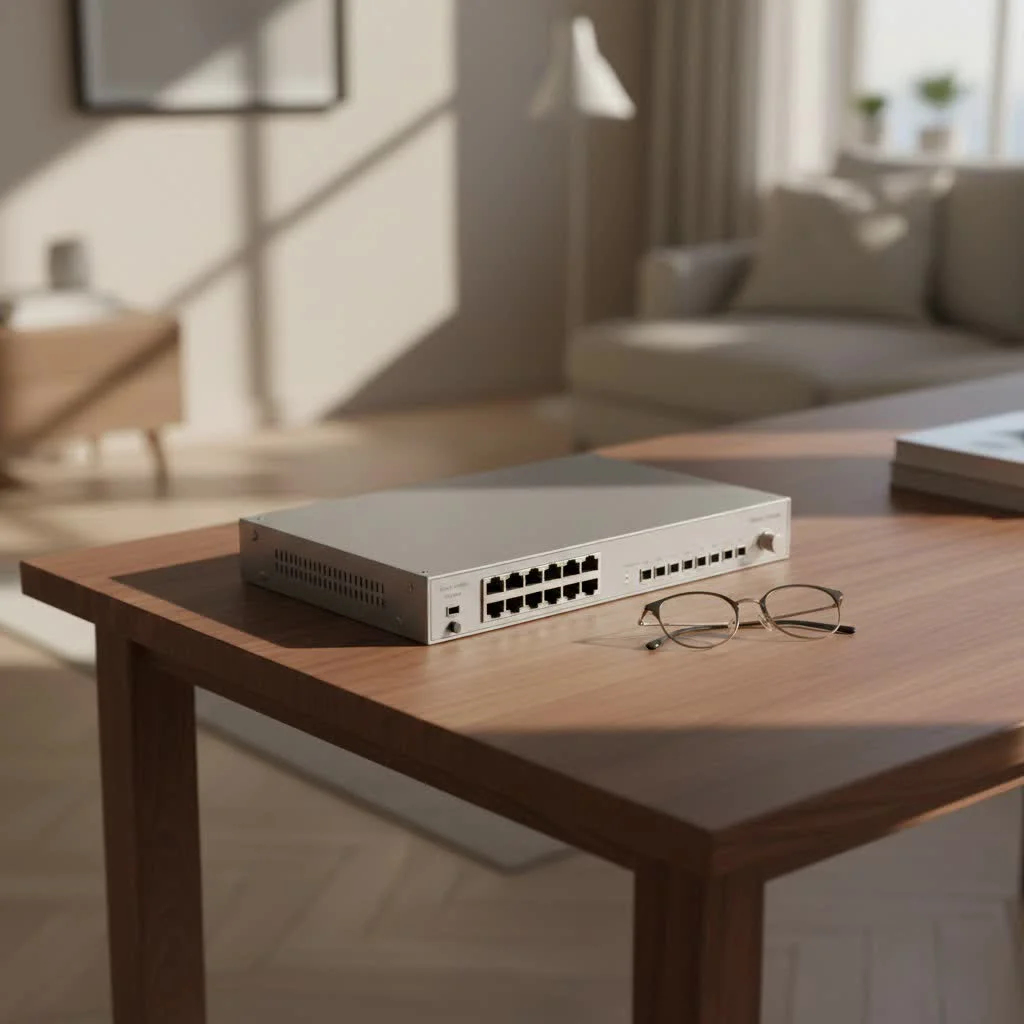
An 8-port switch is a compact network device that expands your local area network (LAN) by providing up to eight additional wired Ethernet connections, effectively multiplying your router’s available ports. These switches are crucial for enhancing network stability, speed, and reliability for bandwidth-intensive activities like 4K streaming, online gaming, and large file transfers, where a stable wired connection consistently outperforms Wi-Fi.
What Exactly is an 8-Port Switch and Why Do You Need One?
At its core, an 8-port switch is a small network device designed to connect up to eight wired devices within your local area network (LAN). Think of it as a smart power strip for your Ethernet cables. Unlike older hubs that simply broadcast data to all connected devices, a switch intelligently directs data packets only to their intended destination. This direct communication significantly reduces network congestion and improves overall performance. For expert network switches reviews on this site.
Why might you need one? Imagine your home office setup: a desktop PC, a network-attached storage (NAS) device, a printer, and a VoIP phone, all vying for stable connections. Add in a gaming console, a smart TV for streaming, and a media server, and suddenly your router’s few LAN ports are overwhelmed. An 8-port switch seamlessly steps in, transforming one of your router’s ports into eight additional, high-speed connections. This is particularly crucial for bandwidth-intensive activities like 4K streaming, online gaming, or large file transfers, where a stable wired connection outperforms Wi-Fi every time.
Decoding the World of 8-Port Switches: Types and Features
While all 8-port switches share the common goal of expanding your network, they come with different capabilities tailored for various needs. Understanding these types is key to making the right choice.
Unmanaged 8-Port Switches: Simple and Effective
These are the most common and user-friendly 8-port switches on the market. True to their name, “unmanaged” means they require no configuration whatsoever. You simply plug in your devices, power them on, and they just work. They operate as plug-and-play devices, automatically detecting network speeds and duplex modes. Unmanaged 8-port switches are perfect for home users, small offices, or extending an existing network where simplicity is paramount and advanced features aren’t required. They are typically fanless, ensuring silent operation, and often come in compact designs suitable for desktop placement or wall mounting.
Eleanor Vance, a Network Architect at NexGen Solutions, notes, “For most home users and small businesses just looking to add more wired ports, an unmanaged 8-port switch is the sweet spot. It offers instant expansion without the headaches of complex setup, making network growth accessible to everyone.”
Managed 8-Port Switches: Power and Control for Advanced Users
|
Our Picks for the Best Network Switch in 2026
As an Amazon Associate I earn from qualifying purchases.
|
||
| Num | Product | Action |
|---|---|---|
| 1 | UGREEN 16 Port Gigabit Switch, Plug & Play Ethernt Switch, Standard/VLAN Mode, Unmanaged, Sturdy Metal, Fanless Quiet, Desktop & Wall Mount Network LAN Splitter Hub for Laptop, Printer, NAS, Router |

|
| 2 | TP-Link 24 Port Gigabit Ethernet Switch Desktop/ Rackmount Plug & Play Shielded Ports Sturdy Metal Fanless Quiet Traffic Optimization Unmanaged (TL-SG1024S) |
|
| 3 | TP-Link TL-SG105S-M2 - 5-Port Multi-Gigabit 2.5G Ethernet Switch - Unmanaged Network Switch - Ethernet Splitter - Plug & Play - Desktop/Wall Mount - Silent Operation |
|
| 4 | NETGEAR 8-Port Gigabit Ethernet Unmanaged Essentials Switch (GS308) - Home Network Hub, Office Ethernet Splitter, Plug-and-Play, Silent Operation, Desktop or Wall Mount |
|
| 5 | TP-Link TL-SG105, 5 Port Gigabit Unmanaged Ethernet Switch, Network Hub, Ethernet Splitter, Plug & Play, Fanless Metal Design, Shielded Ports, Traffic Optimization |
|
| 6 | TP-Link Litewave 5 Port Gigabit Ethernet Switch - Desktop Ethernet Splitter - Unshielded Network Switch - Plug & Play - Fanless Quiet - Unmanaged (LS1005G) |
|
| 7 | BrosTrend 2.5Gb Switch, 8 Port Network Switch 2.5 Gigabit, Unmanaged Ethernet Switch for Game Console, NAS, PC, Computer Networking Switch Plug & Play Fanless, Desktop Wall Mount, Lifetime Protection |
|
| 8 | TP-Link 5-Port Gigabit Ethernet Easy Smart Switch- Plug and Play - Desktop - Sturdy Metal w/Shielded Ports - Limited Lifetime Replacement (TL-SG105E), Black… |
|
| 9 | TP-Link 8 Port Gigabit Ethernet Network Switch - Ethernet Splitter - Plug & Play - Fanless - Sturdy Metal w/ Shielded Ports - Traffic Optimization - Unmanaged - Lifetime Protection (TL-SG108) |
|
| 10 | UGREEN Ethernet Switch, 5 Port Gigabit Ethernet Splitter, Plug & Play, Wall Mount & Desktop Network Switch Hub, Unmanaged, Compact, with LED, Fanless Quiet, for Internet Cable, Laptop, Router, NAS |
|
Stepping up in capability, managed 8-port switches offer a significant level of control over your network traffic. These switches provide a web-based interface or command-line interface (CLI) that allows you to configure settings like Virtual Local Area Networks (VLANs), Quality of Service (QoS), port mirroring, and security features. VLANs let you segment your network into smaller, isolated broadcast domains, enhancing security and performance. QoS allows you to prioritize certain types of traffic (like VoIP calls or gaming data) over others, ensuring smooth operation even under heavy load. While less common for basic 8-port needs, small business environments or advanced prosumers might leverage a managed 8-port switch for granular network customization and troubleshooting.
8-Port PoE Switches: Power Up Your Devices
Power over Ethernet (PoE) technology is a major upgrade for many network deployments. An 8-port PoE switch can deliver both data and electrical power to compatible devices over a single Ethernet cable. This eliminates the need for separate power outlets for devices like IP cameras, wireless access points (APs), VoIP phones, or smart lighting. For instance, you can install security cameras outdoors or deploy wireless access points in ceilings without worrying about running electrical wiring to those locations.
When considering an 8-port PoE switch, pay attention to its total power budget (the maximum wattage it can supply across all ports) and whether it supports PoE (802.3af) or PoE+ (802.3at), with PoE+ offering higher power per port for more demanding devices.
Gigabit vs. Fast Ethernet: Don’t Compromise on Speed
The speed capabilities of your 8-port switch are critical. Modern networks demand speed, and that means looking for an 8-port switch that supports Gigabit Ethernet (10/100/1000 Mbps). Gigabit speeds (1000 Mbps) are essential for virtually all wired devices today, from PCs and NAS drives to gaming consoles and smart TVs. While older Fast Ethernet (10/100 Mbps) switches are still available and cheaper, they will bottleneck your network, severely limiting data transfer rates. Always opt for an 8-port Gigabit switch to future-proof your network and ensure optimal performance for all your connected devices.
How to Choose the Perfect 8-Port Switch for Your Setup
Selecting the right 8-port switch involves balancing your current needs with potential future expansions. Here are the key factors to consider:
- Speed is Paramount: Go Gigabit. As discussed, a Gigabit 8-port switch is non-negotiable for any modern network. Don’t settle for Fast Ethernet unless you have very specific, low-bandwidth legacy equipment.
- Do You Need PoE? If you plan to deploy IP cameras, Wi-Fi access points, or VoIP phones, an 8-port PoE switch will simplify installation and reduce cable clutter. Calculate the power requirements of your PoE devices to ensure the switch’s total power budget is sufficient.
- Managed or Unmanaged? For most home and small office users, an unmanaged 8-port switch is perfectly adequate and offers the best value and ease of use. If you need advanced control over traffic, VLANs, or network monitoring, a managed or “smart” (lightly managed) switch might be worth the extra investment and complexity.
- Fanless Design for Silence: Many 8-port switches are fanless, making them ideal for quiet environments like bedrooms, living rooms, or small offices. Always check the specifications if noise is a concern.
- Form Factor and Mounting: Consider where you’ll place the switch. Most 8-port switches are compact desktop units, but some offer wall-mounting options for cleaner installations.
- Brand Reputation and Reliability: Stick to reputable brands known for their networking equipment. While 8-port switches are generally reliable, quality brands often provide better support and firmware updates.
- Budget: 8-port switches are relatively inexpensive, especially unmanaged Gigabit models. Expect to pay more for PoE capabilities or managed features.
Here’s a quick comparison to help you decide:
| Feature | Unmanaged 8-Port Switch | Managed 8-Port Switch | 8-Port PoE Switch |
|---|---|---|---|
| Ease of Use | Plug-and-play, no configuration | Requires configuration | Plug-and-play, if non-PoE; config if managed PoE |
| Cost | Low | Moderate to High | Moderate to High |
| Features | Basic connectivity, auto-negotiation | VLANs, QoS, SNMP, security | Data + Power over Ethernet |
| Ideal For | Home users, small offices, network expansion | Advanced home, small business with specific needs | IP cameras, Wi-Fi APs, VoIP phones |
| Setup Time | Minutes | Hours (initial configuration) | Minutes (if unmanaged PoE) |
Setting Up Your 8-Port Switch: A Step-by-Step Guide
Getting your 8-port switch up and running is incredibly straightforward, especially for unmanaged models.
Unmanaged Switch Setup: Instant Connectivity
- Unbox and Power On: Take your 8-port switch out of its packaging and connect it to a power outlet using the included power adapter. The power LED should illuminate.
- Connect to Your Router: Use an Ethernet cable (Cat5e or Cat6 recommended for Gigabit speeds) to connect one of the switch’s ports (any port will typically work, as there’s usually no dedicated “uplink” port on unmanaged switches) to an available LAN port on your primary router.
- Connect Your Devices: Now, connect your network devices (PCs, game consoles, smart TVs, NAS, etc.) to the remaining available ports on the 8-port switch using Ethernet cables.
- Verify Connections: Check the LED indicators on the switch for each connected port. A solid or blinking light usually indicates an active connection and data transmission. Your devices should now have network access.
Basic Managed Switch Configuration (Optional)
If you’ve opted for a managed 8-port switch, the initial physical setup is similar. However, you’ll then need to:
- Access the Web Interface: Connect a computer directly to one of the switch’s ports. Your switch will usually have a default IP address (check the manual). Type this IP into your web browser to access the management interface.
- Login: Enter the default username and password (again, refer to the manual; change these immediately for security).
- Configure Settings: From here, you can set up VLANs, configure QoS rules, monitor port status, and adjust other advanced settings as needed. This process varies significantly between manufacturers.
Troubleshooting Common 8-Port Switch Issues
While 8-port switches are generally reliable, you might occasionally encounter minor issues. Here’s how to tackle the most common ones:
Device Not Connecting
- Check Cables: Ensure all Ethernet cables are securely plugged into both the device and the switch. Try swapping cables with known working ones. Damaged cables are a frequent culprit.
- Port LEDs: Look at the LED indicator for the problematic port on the switch. If it’s off, there’s no link. If it’s amber instead of green (on some switches), it might indicate a slower connection speed.
- Power Cycle: Try unplugging the switch’s power for 30 seconds, then plugging it back in. Do the same for the non-connecting device.
- Driver Updates: Ensure your device’s network adapter drivers are up to date.
Slow Network Speeds
- Gigabit Compatibility: Confirm that both your 8-port switch AND the connected devices (and their network adapters) support Gigabit Ethernet. If any component is Fast Ethernet (10/100 Mbps), it will bottleneck the entire connection.
- Cable Quality: Use Cat5e or Cat6 Ethernet cables for Gigabit speeds. Older Cat5 cables might not consistently support 1000 Mbps.
- Router/ISP Speed: that your switch can only be as fast as your internet connection and your router’s capabilities. If your internet is slow, the switch won’t magically make it faster to the outside world, though local network transfers will still benefit.
- Traffic Congestion: In very busy networks, even Gigabit can feel slow. If you have a managed 8-port switch, consider configuring QoS to prioritize critical traffic.
PoE Device Power Failures
- PoE Budget: Check the total power budget of your 8-port PoE switch. If the combined power draw of your PoE devices exceeds this budget, some devices might not power on or might drop offline.
- PoE Standards: Ensure your PoE devices are compatible with the PoE standard (802.3af or 802.3at/PoE+) supported by your switch.
- Cable Length: Extremely long Ethernet cable runs (close to or exceeding 100 meters) can lead to power loss, impacting PoE device performance.
Expert Insights: Elevating Your Network with 8-Port Switches
Maximizing the potential of your 8-port switch goes beyond basic setup. Consider these insights for an optimized network experience.
Marcus Chen, Senior Network Engineer at TechSphere Innovations, advises, “Don’t underestimate the power of physical organization. Proper cable management around your 8-port switch not only looks cleaner but also aids in troubleshooting and ensures better airflow, which is critical for device longevity, especially in compact spaces.”
For those with demanding network needs, even in a small setup, think about where your high-bandwidth devices are located. Placing your gaming console, media server, or main workstation directly on an 8-port switch will dramatically improve their performance compared to relying solely on Wi-Fi. This simple upgrade provides a tangible boost to stability and speed for your most critical network activities.
Frequently Asked Questions
Do I need a special cable for an 8-port switch?
No, you don’t need a special cable. Standard Ethernet cables (Cat5e or Cat6 are recommended) are perfectly suitable for connecting devices to an 8-port switch. Using Cat6 cables can offer slightly better performance and future-proofing, especially for Gigabit speeds.
Can an 8-port switch replace my router?
An 8-port switch cannot replace your router. A router is essential for connecting your local network to the internet, assigning IP addresses (via DHCP), and providing Wi-Fi. An 8-port switch only expands the number of wired ports available within your existing local network.
What’s the difference between a hub and an 8-port switch?
A hub broadcasts all incoming data to every connected device, which can lead to network congestion and slower speeds. An 8-port switch, conversely, intelligently learns the MAC addresses of connected devices and forwards data only to the intended recipient, significantly improving efficiency and performance.
How many devices can I actually connect to an 8-port switch?
An 8-port switch can physically connect up to eight devices. However, one of these ports will typically be used to connect the switch back to your router or main network, leaving seven ports available for other devices.
Is an 8-port switch suitable for heavy gaming?
Absolutely! An 8-port Gigabit switch is excellent for heavy gaming. It provides a stable, low-latency wired connection that is far superior to Wi-Fi for competitive online gaming. By connecting your console or gaming PC directly to an 8-port switch, you’ll minimize lag and packet loss, leading to a smoother gaming experience.
Conclusion
An 8-port switch is a remarkably versatile and often essential piece of equipment for anyone looking to expand their home or small office network. From providing stable connections for gaming and streaming to powering IP cameras with PoE, these compact devices offer a powerful and cost-effective solution to overcome the limitations of a standard router. By understanding the different types, choosing wisely based on your needs, and following simple setup guidelines, you can effortlessly create a faster, more reliable, and more robust wired network. Don’t let a lack of ports hold your network back; embrace the power of an 8-port switch and take control of your connectivity. What are you waiting for? Dive in and experience the difference a well-connected network can make!
Frequently Asked Questions
Do I need a special cable for an 8-port switch?
No, you do not need a special cable for an 8-port switch. Standard Ethernet cables, specifically Cat5e or Cat6, are recommended for connecting devices to ensure optimal performance, especially for Gigabit speeds.
Can an 8-port switch replace my home or office router?
An 8-port switch cannot replace your router. A router is essential for connecting your local network to the internet, assigning IP addresses via DHCP, and providing Wi-Fi. An 8-port switch only expands the number of wired ports within your existing local network.
What is the key difference between a network hub and an 8-port switch?
A network hub broadcasts all incoming data to every connected device, which can lead to network congestion and slower speeds. In contrast, an 8-port switch intelligently learns the MAC addresses of connected devices and forwards data only to the intended recipient, significantly improving network efficiency and performance.
How many devices can be connected to an 8-port switch?
An 8-port switch can physically connect up to eight devices. Typically, one port is used to connect the switch to your router or main network, leaving seven ports available for other devices like PCs, game consoles, or smart TVs.
Is an 8-port Gigabit switch suitable for heavy online gaming?
Yes, an 8-port Gigabit switch is excellent for heavy online gaming. It provides a stable, low-latency wired connection that is superior to Wi-Fi, minimizing lag and packet loss for a smoother competitive gaming experience.
Set Up Your 8-Port Unmanaged Switch
This guide outlines the simple steps to get your 8-port unmanaged switch up and running for instant network connectivity.
Remove your 8-port switch from its packaging and connect it to a power outlet using the provided adapter. Confirm that the power LED illuminates, indicating it's receiving power.
Use a Cat5e or Cat6 Ethernet cable to link any port on the 8-port switch to an available LAN port on your primary router. Unmanaged switches typically do not have a dedicated 'uplink' port.
Plug your wired network devices, such as PCs, game consoles, smart TVs, or NAS drives, into the remaining available ports on the 8-port switch using Ethernet cables.
Check the LED indicators on the switch for each connected port. A solid or blinking light usually confirms an active connection and successful data transmission, meaning your devices should now have network access.
Get our weekly buyer guide
Practical specs, not advice. Unsubscribe anytime.
I finally upgraded my home network with an 8-port switch, and it’s made a huge difference. My 4K streaming on the living room TV used to buffer occasionally, but now it’s rock solid. Setup was super easy, just plug and play, and I love having dedicated wired connections for my gaming PC and smart home hub without relying on Wi-Fi.
This 8-port switch is exactly what I needed for my small home office. I was running out of ports on my router and needed more stable connections for my work laptop and a couple of servers. It definitely improved the speed and reliability for large file transfers. My only minor complaint is that the indicator lights are a bit bright in a dark room.
I got an 8-port switch to expand my LAN for a few extra devices. It works as advertised for the most part, and I appreciate the intelligent data direction compared to an old hub. However, I found the build quality a little flimsier than I expected for the price range. It’s functional, but I wish it felt a bit more robust.
This switch is a game-changer for anyone with multiple wired devices. I have my Xbox, PlayStation, and desktop PC all connected now, and online gaming is so much smoother. No more lag spikes from Wi-Fi interference. It’s a compact device that fits perfectly behind my entertainment center.