Hey there, fellow network enthusiast! If you’re looking to supercharge your network, simplify cabling, and efficiently power a fleet of devices, then the 24-port PoE switch is about to become your new best friend. In today’s interconnected world, where every IP camera, VoIP phone, and wireless access point demands both data and power, this single piece of hardware is a game-changer. It’s not just another component; it’s the beating heart that brings efficiency and order to your digital ecosystem.
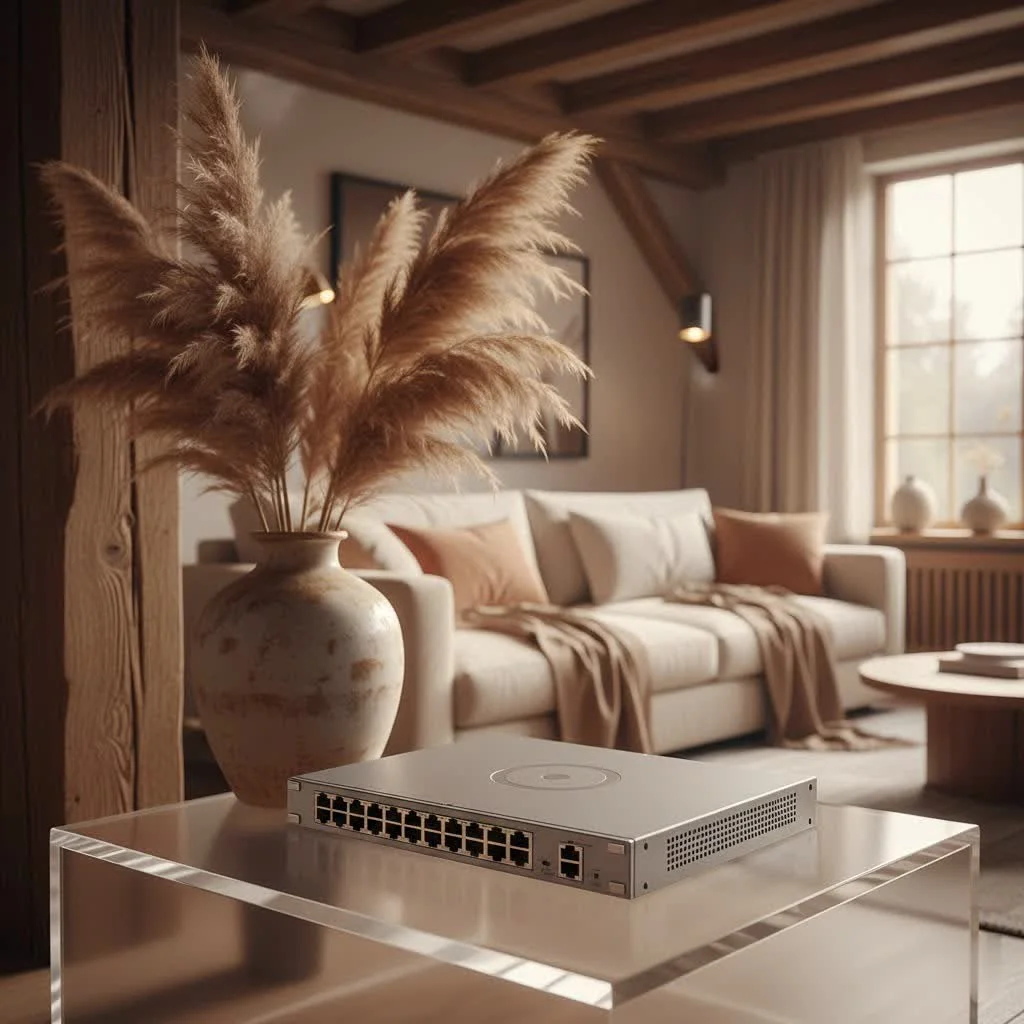
At VGLan, we’ve seen countless network transformations, and the strategic deployment of a robust 24-port PoE switch consistently stands out as a smart investment for businesses and advanced home users alike. Let’s dive deep into understanding, choosing, setting up, and even troubleshooting this essential network device. For see our network switches recommendations on this site.
Understanding the Heart of Your Network: What is a 24-Port PoE Switch?
Imagine a network device that doesn’t just route your data packets with lightning speed but also delivers electrical power to your connected devices—all through a single Ethernet cable. That, my friend, is the magic of a 24-port Power over Ethernet (PoE) switch. Instead of needing separate power outlets and adapters for each IP camera, VoIP phone, or wireless access point, these devices get their juice directly from the network switch.
How does it work its wonders? PoE technology adheres to industry standards set by the IEEE (Institute of Electrical and Electronics Engineers), primarily 802.3af (PoE), 802.3at (PoE+), and the more powerful 802.3bt (PoE++). These standards define how power is safely negotiated and delivered over standard Ethernet cabling. A 24-port PoE switch is designed to provide this dual functionality across twenty-four individual network connections, making it an ideal solution for medium-sized offices, educational institutions, retail spaces, or even sophisticated smart homes. It’s about consolidating your infrastructure, cutting down on cable clutter, and making device deployment incredibly flexible.
The Unbeatable Advantages of a 24-Port PoE Switch
Why should you consider making a 24-port PoE switch the cornerstone of your network? The benefits are tangible and far-reaching:
- Simplified Deployment & Reduced Cabling: This is probably the most celebrated advantage. With a 24-port PoE switch, you eliminate the need for electrical outlets near every powered device. No more running separate power cords, no more unsightly power strips. A single Ethernet cable handles both data and power, tidying up your installations significantly.
- Cost Efficiency: Less cabling means less material cost, and reduced labor for electrical installations. Imagine the savings when setting up dozens of IP cameras across a large facility; the cumulative impact is substantial.
- Enhanced Flexibility & Device Placement: Since you’re no longer tethered to power outlets, you can place PoE-enabled devices in optimal locations, regardless of electrical access. This is fantastic for ceiling-mounted wireless access points or security cameras in remote corners.
- Centralized Power Management: Managed 24-port PoE switches allow you to control and monitor power delivery from a single point. You can remotely power cycle a troublesome IP camera or schedule power shutdowns for specific devices, saving energy and simplifying maintenance.
- Scalability for Growth: As your business grows or your smart home expands, a 24-port unit provides ample room for new devices. Many switches also offer stacking capabilities, allowing you to manage multiple switches as a single, larger logical unit, which is perfect for future expansion without added complexity.
- Improved Reliability and Performance: By adhering to strict PoE standards, these switches ensure stable and safe power delivery. Coupled with Gigabit Ethernet speeds, your devices receive consistent power and high-bandwidth data, leading to reliable operation.
“A well-chosen 24-port PoE switch isn’t just about convenience; it’s about building a resilient, scalable, and efficient network backbone that can adapt to future demands,” notes Alan Nguyen, Lead Network Architect at VGLan.
Choosing Your Champion: Key Considerations for a 24-Port PoE Switch
Selecting the right 24-port PoE switch is crucial for optimizing your network. Here’s what you need to keep in mind:
Power Budget: More Than Just Watts
|
Our Picks for the Best Network Switch in 2026
As an Amazon Associate I earn from qualifying purchases.
|
||
| Num | Product | Action |
|---|---|---|
| 1 | TP-Link TL-SG105S-M2 - 5-Port Multi-Gigabit 2.5G Ethernet Switch - Unmanaged Network Switch - Ethernet Splitter - Plug & Play - Desktop/Wall Mount - Silent Operation |

|
| 2 | BrosTrend 2.5Gb Switch, 8 Port Network Switch 2.5 Gigabit, Unmanaged Ethernet Switch for Game Console, NAS, PC, Computer Networking Switch Plug & Play Fanless, Desktop Wall Mount, Lifetime Protection |
|
| 3 | TP-Link 24 Port Gigabit Ethernet Switch Desktop/ Rackmount Plug & Play Shielded Ports Sturdy Metal Fanless Quiet Traffic Optimization Unmanaged (TL-SG1024S) |
|
| 4 | TP-Link 8 Port Gigabit Ethernet Network Switch - Ethernet Splitter - Plug & Play - Fanless - Sturdy Metal w/ Shielded Ports - Traffic Optimization - Unmanaged - Lifetime Protection (TL-SG108) |
|
| 5 | UGREEN Ethernet Switch, 5 Port Gigabit Ethernet Splitter, Plug & Play, Wall Mount & Desktop Network Switch Hub, Unmanaged, Compact, with LED, Fanless Quiet, for Internet Cable, Laptop, Router, NAS |
|
| 6 | TP-Link TL-SG105, 5 Port Gigabit Unmanaged Ethernet Switch, Network Hub, Ethernet Splitter, Plug & Play, Fanless Metal Design, Shielded Ports, Traffic Optimization |
|
| 7 | NETGEAR 8-Port Gigabit Ethernet Unmanaged Essentials Switch (GS308) - Home Network Hub, Office Ethernet Splitter, Plug-and-Play, Silent Operation, Desktop or Wall Mount |
|
| 8 | UGREEN 16 Port Gigabit Switch, Plug & Play Ethernt Switch, Standard/VLAN Mode, Unmanaged, Sturdy Metal, Fanless Quiet, Desktop & Wall Mount Network LAN Splitter Hub for Laptop, Printer, NAS, Router |
|
| 9 | TP-Link 5-Port Gigabit Ethernet Easy Smart Switch- Plug and Play - Desktop - Sturdy Metal w/Shielded Ports - Limited Lifetime Replacement (TL-SG105E), Black… |
|
| 10 | TP-Link Litewave 5 Port Gigabit Ethernet Switch - Desktop Ethernet Splitter - Unshielded Network Switch - Plug & Play - Fanless Quiet - Unmanaged (LS1005G) |
|
The total power budget is arguably the most critical factor. This number, usually expressed in Watts, indicates the maximum power the switch can supply across all its PoE ports. Each connected device—be it an IP camera, a VoIP phone, or an access point—has its own power requirement. You need to sum up the wattage of all your PoE devices and ensure the switch’s total power budget comfortably exceeds that sum, with some headroom for future additions.
Also, pay attention to the PoE standards supported:
- IEEE 802.3af (PoE): Up to 15.4W per port.
- IEEE 802.3at (PoE+): Up to 30W per port, ideal for more power-hungry devices like pan-tilt-zoom (PTZ) cameras or Wi-Fi 6 access points.
- IEEE 802.3bt (PoE++): Up to 60W or even 90W per port for advanced devices.
Ensure your 24-port PoE switch supports the power standards required by your devices.
Gigabit Ethernet: Speed is King
In today’s data-intensive environments, every port on your 24-port PoE switch should support Gigabit Ethernet (10/100/1000 Mbps). This ensures high-speed data transfer, preventing bottlenecks, especially when streaming high-resolution video from multiple IP cameras or handling large file transfers. Don’t compromise on speed; it’s the foundation of a responsive network.
Managed vs. Unmanaged: Control or Simplicity?
- Unmanaged 24-Port PoE Switches: These are plug-and-play devices, perfect for simple networks that don’t require complex configurations. They’re cost-effective and easy to set up but offer no control over network traffic or power delivery.
- Managed 24-Port PoE Switches: If you need granular control, security features, and advanced network management, a managed switch is your go-to. They allow you to configure:
- VLANs (Virtual Local Area Networks): Segment your network for better security and performance (e.g., separate guest Wi-Fi from corporate data).
- QoS (Quality of Service): Prioritize critical traffic like VoIP calls or video streams to ensure smooth performance.
- SNMP (Simple Network Management Protocol): Monitor network performance and health.
- Port Security: Control which devices can connect to specific ports.
- Remote Management: Access and configure the switch from anywhere.
Uplink Ports & Scalability: Connecting Beyond 24
While you’re focusing on 24 PoE ports, don’t overlook the uplink ports. Most 24-port PoE switches come with additional Gigabit Ethernet or SFP/SFP+ (Small Form-Factor Pluggable) ports. SFP/SFP+ ports are crucial for connecting to your core network, router, or other switches using fiber optic cables, enabling high-speed connections over longer distances and providing essential backbone bandwidth.
Physical Design: Rack-Mount or Desktop?
Consider where your 24-port PoE switch will live. Many are designed for 19-inch rack mounting, ideal for server rooms or network closets. Desktop or wall-mountable options are available for smaller installations. Always ensure proper ventilation, as switches can generate heat, and overheating can lead to performance issues or reduced lifespan.
Setting Up Your 24-Port PoE Switch: A Step-by-Step Guide
Installing a 24-port PoE switch might seem daunting, but it’s a straightforward process if you follow these steps:
- Pre-Installation Checks:
- Environment: Choose a cool, dry, well-ventilated location, away from direct sunlight and heat sources.
- Power Off: Always ensure the switch is powered off before connecting or disconnecting cables.
- Anti-Static: Wear anti-static gloves or use an anti-static wrist strap to protect the electronics.
- Physical Placement & Mounting:
- Rack Mount: If rack-mounting, attach the provided L-shaped brackets to the sides of the switch and secure it to your network rack. Ensure sufficient space for airflow (at least 1.5 cm between switches).
- Desktop/Wall Mount: If placing on a desktop, ensure it’s a stable, flat surface. For wall mounting, use appropriate anchors and screws, making sure the switch is securely fastened.
- Connecting PoE Devices:
- Using high-quality Cat5e or Cat6 Ethernet cables, connect your PoE-powered devices (IP cameras, VoIP phones, WAPs) to the numbered PoE ports on the switch.
- Double-check that the total power requirements of your connected devices do not exceed the switch’s overall power budget.
- Connecting to the Core Network/Router:
- Take a standard Ethernet cable and connect one of the switch’s uplink ports (often non-PoE Gigabit Ethernet or SFP/SFP+ ports) to your main network router, firewall, or core switch. This integrates your 24-port PoE switch into your broader network infrastructure.
- Initial Power-Up & LED Checks:
- Connect the switch’s power cord to a reliable power source.
- Turn on the switch.
- Observe the LED indicators. The power LED should be solid green, and port LEDs should light up when a device is connected, indicating data and power activity.
Unleashing Advanced Features: Configuring Your Managed 24-Port PoE Switch
For managed 24-port PoE switches, the real power comes from configuration. Here’s a general approach:
- Accessing the Interface:
- Most managed switches can be accessed via a web-based graphical user interface (GUI). Connect a PC to one of the switch’s regular Ethernet ports (not necessarily PoE) and use an IP scanner tool to find the switch’s default IP address.
- Open a web browser and enter the switch’s IP address. Log in using the default username and password (which you must change immediately for security!).
- Some switches also offer a command-line interface (CLI) via a console port (RS-232), ideal for advanced users.
- Essential Configurations:
- Change Default Credentials: This is your first and most important security step.
- Set Static IP Address: Assign a static IP address to your 24-port PoE switch within your network’s subnet for easy access and management.
- Update Firmware: Always ensure your switch is running the latest firmware from the manufacturer’s website. Firmware updates often include performance enhancements, bug fixes, and security patches.
- VLANs for Network Segmentation:
- Create VLANs to segment different types of traffic or departments (e.g., VLAN for IP cameras, VLAN for VoIP phones, VLAN for guest Wi-Fi). This enhances security and reduces broadcast traffic.
- QoS for Traffic Prioritization:
- Configure QoS rules to prioritize bandwidth for latency-sensitive applications like VoIP calls or video conferencing, ensuring they perform smoothly even under heavy network load.
- Port Management:
- Enable/Disable Ports: Turn off unused ports to enhance security and save energy.
- Port Speed & Duplex: Configure specific port speeds (e.g., 100 Mbps for older devices, 1000 Mbps for most) and duplex settings (full/half).
- PoE Settings: On a managed 24-port PoE switch, you can often enable/disable PoE on individual ports, set power priorities, or view real-time power consumption.
When Things Go Sideways: Troubleshooting Common 24-Port PoE Switch Issues
Even the most robust 24-port PoE switch can encounter hiccups. Here’s how to troubleshoot common problems:
Devices Not Powering Up
- Check Power Budget: Is the total power consumption of your devices exceeding the switch’s power budget? Remove some devices or upgrade to a higher-wattage switch.
- Cable Quality: Are you using Cat5e or Cat6 cables? Lower quality or damaged cables can prevent proper power delivery. Test with a known good cable.
- PoE Standard Mismatch: Does your device require PoE+ (30W) but your switch only supports basic PoE (15.4W)? Ensure compatibility between the device and the 24-port PoE switch standard.
- Port Configuration: For managed switches, verify that PoE is enabled on the specific port and that the port isn’t administratively shut down.
Intermittent Connectivity
- Faulty Cables: Ethernet cables can get damaged. Use a cable tester to check for breaks or poor connections.
- Distance Limitations: PoE has distance limitations, typically 100 meters (328 feet) for standard Ethernet. For longer runs, consider PoE extenders or fiber optic uplinks.
- Network Traffic: An overloaded switch can cause performance issues. Check network monitoring tools for bottlenecks.
Configuration Hiccups
- Reset to Defaults: If you’ve made configuration changes and things aren’t working, a factory reset (if accessible via a button or software) can often clear the issue, allowing you to reconfigure from scratch.
- Firmware Bugs: Ensure your switch’s firmware is up-to-date. Old firmware can sometimes cause unexpected behavior.
Hardware Concerns
- Overheating: Check if the 24-port PoE switch feels excessively hot. Ensure it has adequate ventilation and is not confined in a small, unventilated space.
- Port Failure: Try connecting the problematic device to a different port on the switch. If it works on another port, the original port might be faulty.
Wrapping Up
A 24-port PoE switch is an indispensable tool for building modern, efficient, and scalable networks. By understanding its capabilities, making informed choices based on your needs, and knowing how to properly install and troubleshoot it, you empower yourself to create a robust network infrastructure. Whether you’re powering security systems, unifying communication with VoIP, or expanding your wireless coverage, the 24-port PoE switch simplifies the complex and paves the way for a more streamlined digital experience.
We at VGLan are committed to helping you navigate the intricacies of network technology. Take these insights, apply them to your projects, and transform your network into a powerful, reliable backbone for all your connected devices. Happy networking!
Get our weekly buyer guide
Practical specs, not advice. Unsubscribe anytime.