In today’s fast-paced digital world, a reliable and efficient network is no longer a luxury—it’s a necessity. From smart homes brimming with connected gadgets to bustling enterprises managing vast data flows, the backbone of any modern network is its switching infrastructure. And when it comes to delivering both data and power through a single cable, the Ubiquiti PoE switch has emerged as a true game-changer, simplifying installations and offering unparalleled control.
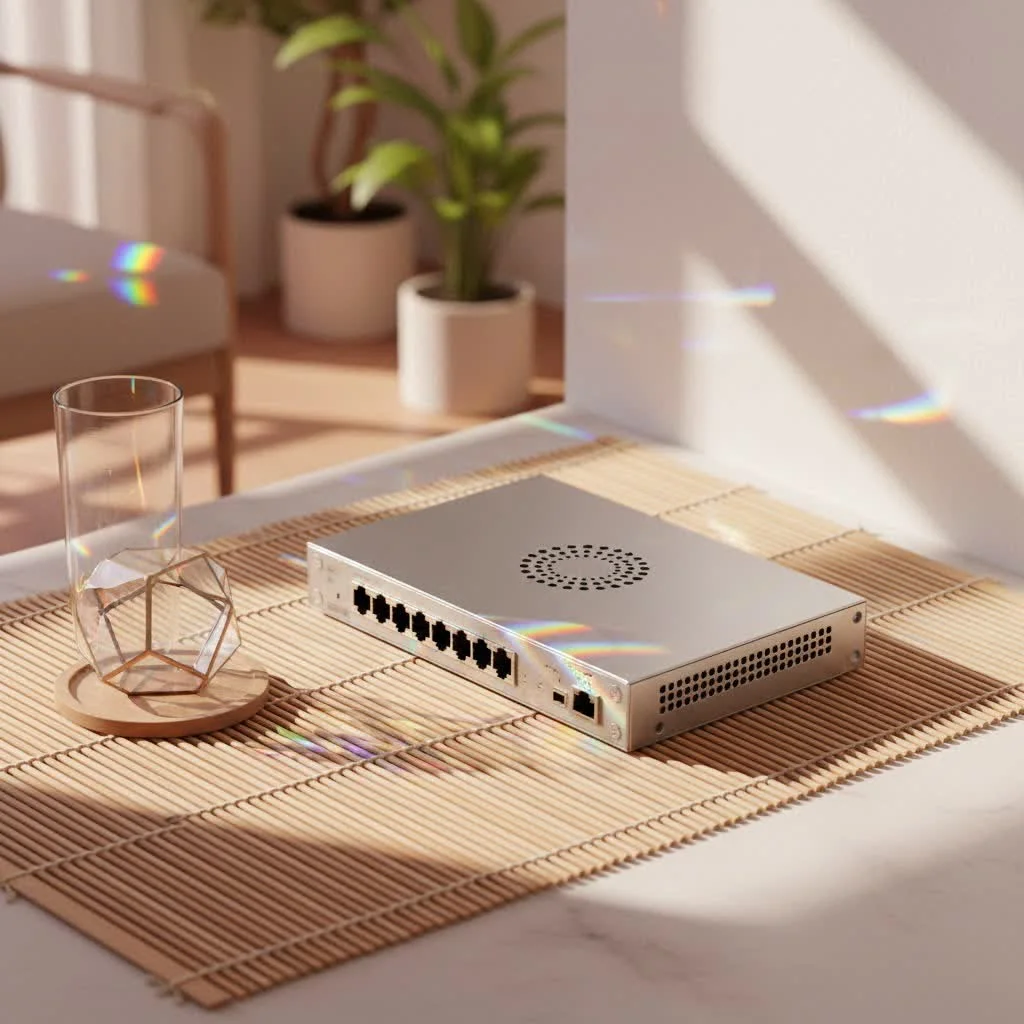
As a seasoned network professional with over two decades in the trenches, I’ve seen countless network solutions come and go. But Ubiquiti’s UniFi ecosystem, particularly its range of Power over Ethernet (PoE) switches, consistently stands out for its robust performance, intuitive management, and seamless integration. In this comprehensive guide, we’ll dive deep into everything you need to know about Ubiquiti PoE switches—from understanding their core functionality and choosing the right model to setting them up and troubleshooting common hiccups—all to help you build a network that’s both powerful and effortlessly managed. For expert network switches reviews on this site.
What Exactly is a Network Switch, and Why Does PoE Matter?
Before we explore the specifics of the Ubiquiti PoE switch lineup, let’s nail down the basics. What role does a network switch play, and why has Power over Ethernet become such a crucial technology?
The Network Switch: Your Network’s Traffic Director
Imagine your network as a busy highway. Without a traffic controller, vehicles would collide, causing chaos and gridlock. A network switch acts as that intelligent traffic director. Unlike older “hubs” that broadcast data to every connected device, a switch learns the unique address (MAC address) of each device on its network segment. When data arrives, it intelligently forwards it only to the intended recipient, dramatically improving network efficiency and performance. This targeted delivery ensures your data travels swiftly and securely, minimizing congestion and maximizing throughput.
Power Over Ethernet (PoE): Simplifying Connectivity
Now, let’s talk about Power over Ethernet, or PoE. Think of it as a superpower for your Ethernet cables. Traditionally, any device needing network access and power—like a Wi-Fi access point, an IP security camera, or a VoIP phone—required two separate cables: one for data and one for electrical power. This often meant complex wiring, unsightly power outlets, and limitations on where you could place devices.
PoE changes all that. It allows a single Ethernet cable to carry both data and electrical power simultaneously, eliminating the need for separate power adapters and outlets. This translates into:
- Reduced Cabling: Fewer cables mean cleaner installations, especially in ceilings, walls, or outdoor environments.
- Flexible Device Placement: You can place PoE-powered devices in locations where power outlets are scarce or inconvenient, greatly expanding your network’s reach.
- Simplified Installations: Deploying new devices becomes a plug-and-play affair, saving time and labor costs.
- Centralized Power Management: Power can be managed and even recycled from a central location, often with built-in backup power options.
PoE isn’t a single standard, though. You’ll encounter different “flavors”:
- 802.3af (PoE): Provides up to 15.4W of power per port, suitable for many basic IP phones and older access points.
- 802.3at (PoE+): Delivers up to 30W per port, powering more demanding devices like modern Wi-Fi access points and advanced security cameras.
- 802.3bt (PoE++): The latest and most powerful standard, offering up to 60W (Type 3) or even 90W (Type 4) per port for high-performance devices, LED lighting, or thin clients.
Ubiquiti also traditionally supported 24V Passive PoE for some older devices. While still functional for compatible hardware, newer deployments generally lean towards the IEEE 802.3af/at/bt standards for broader compatibility and safety.
Diving into the World of Ubiquiti PoE Switches
Ubiquiti has carved out a significant niche in the networking world with its UniFi product line, and their PoE switches are a cornerstone of this ecosystem.
The UniFi Advantage: Why Ubiquiti Stands Out
|
Our Picks for the Best Network Switch in 2026
As an Amazon Associate I earn from qualifying purchases.
|
||
| Num | Product | Action |
|---|---|---|
| 1 | UGREEN 16 Port Gigabit Switch, Plug & Play Ethernt Switch, Standard/VLAN Mode, Unmanaged, Sturdy Metal, Fanless Quiet, Desktop & Wall Mount Network LAN Splitter Hub for Laptop, Printer, NAS, Router |

|
| 2 | TP-Link TL-SG105, 5 Port Gigabit Unmanaged Ethernet Switch, Network Hub, Ethernet Splitter, Plug & Play, Fanless Metal Design, Shielded Ports, Traffic Optimization |
|
| 3 | TP-Link Litewave 5 Port Gigabit Ethernet Switch - Desktop Ethernet Splitter - Unshielded Network Switch - Plug & Play - Fanless Quiet - Unmanaged (LS1005G) |
|
| 4 | UGREEN Ethernet Switch, 5 Port Gigabit Ethernet Splitter, Plug & Play, Wall Mount & Desktop Network Switch Hub, Unmanaged, Compact, with LED, Fanless Quiet, for Internet Cable, Laptop, Router, NAS |
|
| 5 | NETGEAR 8-Port Gigabit Ethernet Unmanaged Essentials Switch (GS308) - Home Network Hub, Office Ethernet Splitter, Plug-and-Play, Silent Operation, Desktop or Wall Mount |
|
| 6 | TP-Link 8 Port Gigabit Ethernet Network Switch - Ethernet Splitter - Plug & Play - Fanless - Sturdy Metal w/ Shielded Ports - Traffic Optimization - Unmanaged - Lifetime Protection (TL-SG108) |
|
| 7 | TP-Link 5-Port Gigabit Ethernet Easy Smart Switch- Plug and Play - Desktop - Sturdy Metal w/Shielded Ports - Limited Lifetime Replacement (TL-SG105E), Black… |
|
| 8 | BrosTrend 2.5Gb Switch, 8 Port Network Switch 2.5 Gigabit, Unmanaged Ethernet Switch for Game Console, NAS, PC, Computer Networking Switch Plug & Play Fanless, Desktop Wall Mount, Lifetime Protection |
|
| 9 | TP-Link TL-SG105S-M2 - 5-Port Multi-Gigabit 2.5G Ethernet Switch - Unmanaged Network Switch - Ethernet Splitter - Plug & Play - Desktop/Wall Mount - Silent Operation |
|
| 10 | TP-Link 24 Port Gigabit Ethernet Switch Desktop/ Rackmount Plug & Play Shielded Ports Sturdy Metal Fanless Quiet Traffic Optimization Unmanaged (TL-SG1024S) |
|
Choosing a Ubiquiti PoE switch means buying into the UniFi ecosystem, and that’s where the real magic happens. The UniFi Network Application (which can run on a UniFi Dream Machine, a Cloud Key, or even on a dedicated server) provides a single pane of glass for managing your entire network. This centralized control offers:
- Intuitive Interface: A clean, user-friendly graphical interface makes configuring complex network settings surprisingly straightforward, even for those new to advanced networking.
- Real-time Insights: Monitor every aspect of your network in real-time, from device connectivity and port status to power consumption and traffic flow.
- Remote Management: Manage your network from anywhere in the world, a huge boon for businesses with multiple sites or for IT professionals supporting clients.
- Seamless Integration: Your Ubiquiti PoE switch works hand-in-hand with UniFi access points, routers, and cameras, creating a cohesive, high-performing network where every component understands and optimizes for the others.
Popular Models: Finding Your Ubiquiti PoE Switch Fit
Ubiquiti offers a diverse range of PoE switches, each designed to meet specific needs and budget considerations. Here’s a glimpse into the popular series you’ll encounter:
- UniFi Switch Lite/Flex Series: These compact and often stylish switches are perfect for home labs, small offices, or extending PoE to specific areas. They typically feature fewer ports and a lower PoE budget, with some Flex models even being powered by PoE themselves, offering incredible deployment flexibility. Many are fanless for silent operation, a big plus for noise-sensitive environments.
- UniFi Switch (Standard) Series: These are the workhorses for growing networks, offering a good balance of port density, PoE capabilities, and uplink versatility. They provide a solid foundation for most small to medium-sized deployments.
- UniFi Switch Pro Series: When performance, advanced features, and higher power budgets are paramount, the Pro series steps up. Models like the USW-Pro-24-PoE and USW-Pro-48-PoE offer Layer 3 capabilities, multi-gigabit Ethernet ports for high-bandwidth devices, 10G SFP+ uplinks for blazing-fast fiber connections, substantial PoE++ budgets (e.g., 400W or 600W total), and often include a handy touchscreen display for quick status checks. The UniFi Pro Max 48 PoE, for instance, has been lauded for its exceptional performance even under heavy load.
- UniFi Switch Enterprise Series: Designed for the most demanding deployments, these switches often feature a higher concentration of 2.5GbE or 10GbE RJ45 ports to fully leverage the speed of Wi-Fi 6/7 access points and high-speed wired devices.
- UniFi Switch Industrial: For harsh environmental conditions or specialized industrial applications, the Industrial series offers ruggedized enclosures and robust PoE++ support.
When evaluating any Ubiquiti PoE switch, always pay close attention to its port count, total PoE budget, SFP/SFP+ uplinks (for fiber), and Layer 2/3 capabilities to ensure it aligns with your network’s current and future demands.
Picking the Perfect Ubiquiti PoE Switch for Your Needs
Choosing the right Ubiquiti PoE switch doesn’t have to be a guessing game. It’s about aligning your network’s current demands with its future growth. Here’s my practical, step-by-step approach:
Step 1: Count Your Devices and Calculate Your Power Needs
This is arguably the most critical step. Start by listing every device that will connect to your switch and requires Power over Ethernet. Common culprits include:
- Wi-Fi Access Points (APs): Modern Wi-Fi 6 and Wi-Fi 7 APs often demand PoE+ or even PoE++ for full performance.
- IP Security Cameras: From basic surveillance to advanced PTZ (Pan-Tilt-Zoom) cameras, power requirements can vary significantly.
- VoIP Phones: Most IP phones operate on standard PoE.
- UniFi Flex Mini/Flex Switches: Some smaller Ubiquiti switches can even be powered by PoE themselves.
For each device, check its specifications for its maximum power consumption (in watts). Don’t just look at typical usage; consider the maximum draw, especially during startup. Once you have individual device wattage, sum them up. Now, here’s a crucial tip from the field:
“When it comes to powering your network, always give yourself some breathing room. A little extra PoE budget now can save you a big headache later!” – Alex Chen, Senior Network Architect at VGLan.com.
Aim for a PoE switch with a total power budget that is at least 20-30% higher than your calculated total. This buffer accounts for startup spikes, future device additions, and ensures your switch isn’t constantly running at its maximum capacity, which can prolong its lifespan.
Step 2: Consider Port Speed and Uplink Requirements
- Gigabit Ethernet (1GbE): For most standard devices (desktop computers, basic cameras, older APs), 1-Gigabit (1GbE) RJ45 ports are perfectly sufficient. Most Ubiquiti PoE switches offer a full complement of these.
- Multi-Gigabit Ethernet (2.5GbE, 5GbE, 10GbE): If you’re deploying high-performance Wi-Fi 6/7 access points, network-attached storage (NAS), or professional workstations handling large files, you’ll want a Ubiquiti PoE switch with multi-gigabit RJ45 ports (e.g., 2.5GbE or 10GbE). These are often found in the UniFi Switch Pro and Enterprise series.
- SFP/SFP+ Uplinks: For connecting your PoE switch to other switches, a core router, or a high-speed fiber backbone, SFP (1Gbps fiber) or SFP+ (10Gbps fiber) ports are essential. They provide high-bandwidth uplinks and allow for longer-distance connections than traditional copper Ethernet.
Step 3: Managed vs. Unmanaged – Embracing the UniFi Control
While there are unmanaged switches on the market, Ubiquiti’s UniFi line is synonymous with managed switches. This means you get a powerful array of features to control and optimize your network. The benefits of a managed Ubiquiti PoE switch far outweigh any initial cost difference:
- VLAN Support: Segment your network for enhanced security and performance (e.g., separating guest Wi-Fi, IoT devices, or surveillance cameras).
- Quality of Service (QoS): Prioritize critical traffic like VoIP calls or video streams to ensure smooth performance.
- Link Aggregation (LACP): Combine multiple Ethernet ports into a single logical link for increased bandwidth and redundancy.
- Detailed Monitoring: Get granular data on every port, including data throughput, error rates, and PoE consumption.
Step 4: Form Factor and Environment
Finally, consider where your switch will live:
- Rack-Mountable: For server closets or network racks, a 1U rack-mountable switch (common in Pro and standard series) is ideal for organization and airflow.
- Desktop/Wall-Mountable: Smaller switches like the UniFi Switch Lite are perfect for placing on a desk, shelf, or discreetly mounting on a wall.
- Fanless Operation: Many smaller Ubiquiti PoE switches are passively cooled, meaning they operate silently—a huge advantage for home offices or living areas. Larger, higher-power switches typically require active cooling (fans).
- Environmental Needs: If you’re deploying in extreme temperatures or dusty environments, explore the UniFi Industrial series for ruggedized options.
Getting Your Ubiquiti PoE Switch Up and Running: Basic Setup
One of the beauties of the UniFi ecosystem is its streamlined setup process. Here’s how to get your Ubiquiti PoE switch adopted and configured.
Physical Connections: Hooking Things Up
- Power Up: Connect the power cord to your Ubiquiti PoE switch and plug it into a suitable power outlet.
- Network Uplink: Connect one of the switch’s standard Ethernet ports (or an SFP/SFP+ port with a transceiver) to your router or existing core switch. This is your uplink to the rest of your network and the internet.
- Connect PoE Devices: Plug your PoE-powered devices (access points, cameras, phones) into the designated PoE ports on your Ubiquiti switch. The switch should automatically detect and provide power to compliant devices (802.3af/at/bt).
Adopting Your Switch in the UniFi Network Application
This is where the UniFi magic truly begins:
- Access the UniFi Network Application: Ensure your UniFi Network Application (running on a UniFi Dream Machine, Cloud Key, or self-hosted server) is active and accessible on the same network segment as your new switch.
- Discover the Switch: Navigate to the “Devices” tab within your UniFi Network Application. Your newly connected Ubiquiti PoE switch should appear as “Pending Adoption.”
- Adopt and Update: Click on the pending switch and select “Adopt.” The UniFi Controller will then integrate the switch into your network, apply default configurations, and often initiate a firmware update. This process typically takes a few minutes. Once adopted, the switch’s status LED usually turns blue.
Essential Configurations: VLANs and Port Settings
After adoption, you’ll want to fine-tune your switch. The UniFi Network Application makes this easy:
- VLANs (Virtual Local Area Networks): Create and manage VLANs to logically segment your network. For example, you might create a “Guest VLAN” for visitors or an “IoT VLAN” for smart home devices, isolating them from your main network for security. You can then assign specific VLANs to individual switch ports using “Port Profiles.”
- PoE Settings: While auto-sensing PoE is the default, you can configure PoE settings per port. This allows you to manually enable/disable PoE, select specific PoE standards (e.g., 24V Passive for older gear), or even set a maximum power output for a port if necessary.
- Port Naming: For better organization, give meaningful names to each port, indicating which device is connected.
Common Pitfalls and Troubleshooting Your Ubiquiti PoE Switch
Even with the best equipment, occasional issues can arise. Here’s how to diagnose and fix common problems with your Ubiquiti PoE switch.
“My Device Isn’t Powering On!” Diagnosing PoE Issues
This is perhaps the most frequent head-scratcher. If a PoE device connected to your Ubiquiti PoE switch isn’t powering up, consider these steps:
- PoE Compatibility Check: Double-check the power requirements of your device. Does it need 802.3af (PoE), 802.3at (PoE+), 802.3bt (PoE++), or perhaps 24V Passive PoE? Then, confirm that the specific port on your Ubiquiti PoE switch supports that standard. Mismatched standards are a common culprit.
- Verify PoE Port Status in UniFi Controller: Go to the “Devices” tab in your UniFi Network Application, select your switch, and navigate to the “Ports” section. Ensure that PoE is enabled for the specific port your device is connected to. It should ideally be set to “Auto” or the correct standard. If it’s “Off,” toggle it.
- Power Budget Exhaustion: Every Ubiquiti PoE switch has a maximum total PoE power budget. If you’ve connected too many high-power devices, the switch might not have enough power left for new additions, or it might even shut down power to less critical devices. Check your switch’s power consumption in the UniFi Controller.
- Faulty Ethernet Cable: A damaged, improperly terminated, or low-quality Ethernet cable can prevent power delivery even if data passes through. Try swapping the cable with a known good one. Always use good quality copper cables for PoE.
- Firmware Glitches & Restart: Sometimes, minor software bugs can cause a port to misbehave. Ensure your switch firmware is up to date via the UniFi Controller. As a basic troubleshooting step, a simple restart of the switch can often resolve temporary issues.
- Try a Different Port: Plug the device into another PoE-enabled port on the same switch, or even a different Ubiquiti PoE switch if available, to isolate if the issue is port-specific.
Network Performance Headaches and Connectivity Quirks
Beyond PoE, other network issues can crop up:
- VLAN Mismatches: If a device has network connectivity but no internet access, or can’t reach other devices it should, a VLAN misconfiguration is likely. Ensure the port profile applied to the switch port has the correct VLAN assigned and that your routing is correctly configured.
- IP Conflicts: Make sure every device on your network receives a unique IP address. The UniFi Network Application can help identify IP conflicts.
- “Disconnected” Status in Controller: If the UniFi Controller shows a port as “Disconnected” but a device is physically plugged in, check the cable, ensure the device is powered on, and confirm the port isn’t manually disabled in the controller.
- “Stuck in Provisioning”: Occasionally, a switch or port might get stuck in a “provisioning” state. This often indicates a communication issue between the switch and the UniFi Controller, or a pending firmware update that failed. Try restarting the switch and forcing a re-provision from the controller.
- Slow Network Speed: Beyond external factors like your ISP, ensure all cables are properly seated, undamaged, and that the devices themselves support the speeds you expect. Verify link speeds in the UniFi Controller.
Remember, a methodical approach to troubleshooting, starting with the simplest checks, will save you a lot of time and frustration.
Frequently Asked Questions about Ubiquiti PoE Switches
Here are some common questions I hear about Ubiquiti PoE switches:
- Q1: What is the maximum cable length for Power over Ethernet (PoE)?
- A1: Standard Ethernet and PoE specifications limit the cable length to 100 meters (328 feet) for reliable data and power transmission. Beyond this, signal degradation can occur.
- Q2: Can I mix Ubiquiti and non-Ubiquiti PoE devices with my UniFi switch?
- A2: Yes, Ubiquiti UniFi switches adhere to IEEE 802.3af/at/bt standards, so they are generally compatible with most standard-compliant PoE devices from other manufacturers. Just ensure the device’s power requirements (PoE, PoE+, PoE++) match what your switch port can provide.
- Q3: How do I upgrade the firmware on my Ubiquiti PoE switch?
- A3: Firmware updates are conveniently managed through the UniFi Network Application. The controller will notify you of available updates, which can typically be applied with a few clicks from the “Devices” tab, ensuring your switch runs optimally.
- Q4: What’s the difference between UniFi switches and Ubiquiti EdgeSwitches?
- A4: UniFi switches are designed for centralized management via the UniFi Network Application, offering a highly integrated ecosystem with other UniFi devices. EdgeSwitches, part of Ubiquiti’s EdgeMAX line, are managed individually via a web GUI or CLI and are typically designed for more traditional, standalone network deployments that don’t rely on a central controller.
- Q5: How can I monitor the power consumption of devices connected to my Ubiquiti PoE switch?
- A5: The UniFi Network Application provides detailed real-time statistics for each port, including the current power draw of connected PoE devices. This valuable feature helps you keep track of your overall PoE budget and diagnose power-related issues.
Conclusion
The Ubiquiti PoE switch isn’t just another piece of networking hardware; it’s a foundational component for building modern, efficient, and easily managed networks. By intelligently delivering both data and power over a single cable, these switches streamline installations, reduce clutter, and open up new possibilities for device placement.
With the powerful UniFi Network Application, you gain unparalleled control, real-time insights, and seamless integration across your entire Ubiquiti ecosystem. Whether you’re setting up a robust smart home, a bustling small business, or a complex enterprise network, understanding the types, selection criteria, setup procedures, and troubleshooting tips for Ubiquiti PoE switches empowers you to optimize your network’s performance and reliability.
So, take the leap, explore the capabilities of the Ubiquiti PoE switch lineup, and transform the way you manage your network. The future of streamlined, powerful connectivity is here—and it’s simpler than you think. What’s your experience with Ubiquiti PoE switches? Share your insights and successes as you continue to build and manage the network of your dreams!
Get our weekly buyer guide
Practical specs, not advice. Unsubscribe anytime.