In today’s interconnected world, a robust and reliable network isn’t just a luxury; it’s a fundamental necessity, whether you’re streaming 4K video at home or running critical business applications. At the heart of many efficient networks lies a powerful yet often overlooked device: the network switch. Among the myriad options available, Netgear Switches have carved out a significant reputation for their versatility, performance, and diverse offerings. From simple plug-and-play models to sophisticated managed solutions, understanding the landscape of Netgear switches is key to unlocking your network’s full potential and ensuring seamless connectivity for all your devices.
What is a Network Switch and Why Does Your Network Need One?
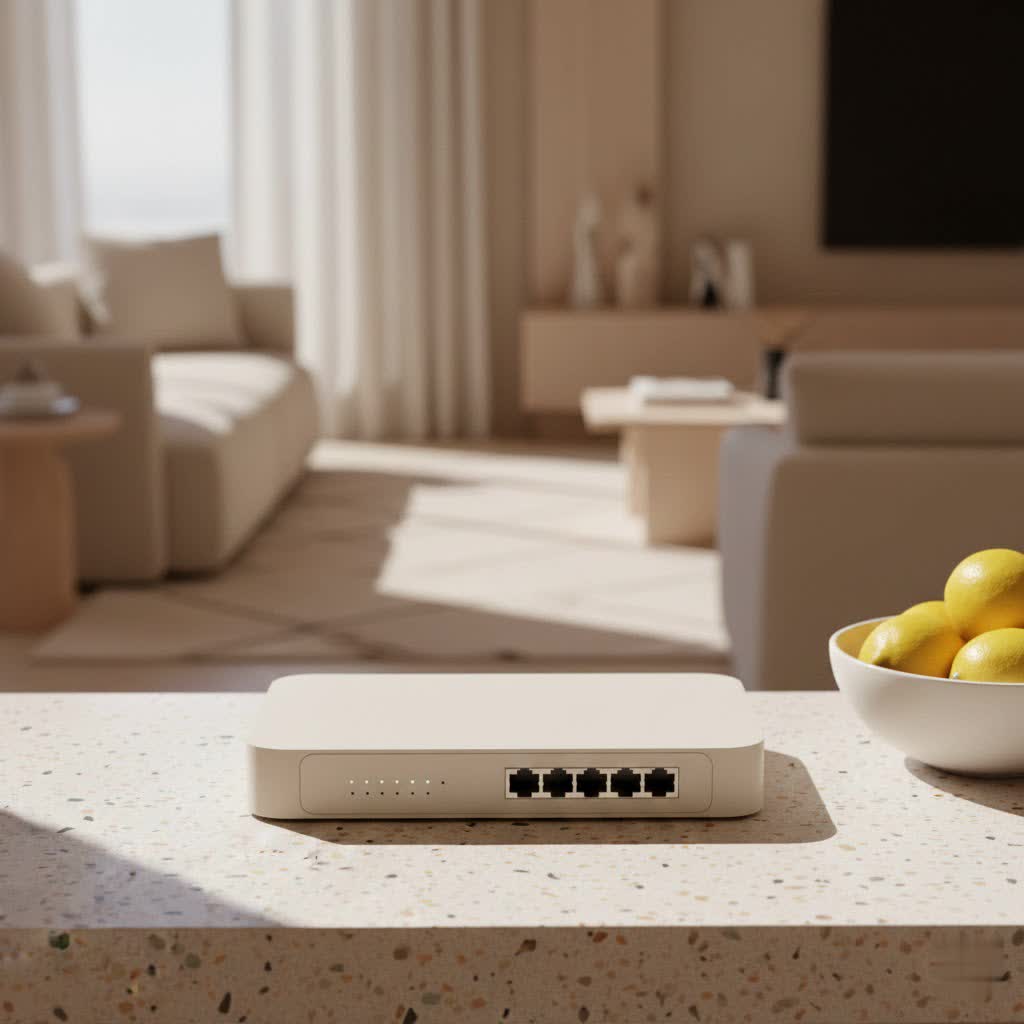
Imagine your router as a central hub, directing internet traffic to and from your home or office. While essential, routers typically offer a limited number of Ethernet ports. This is where a network switch comes in. A network switch is a device that connects multiple devices on a Local Area Network (LAN), enabling them to communicate with each other and with the internet through your router. Instead of simply “splitting” a connection like an old hub, a modern Netgear switch intelligently forwards data packets only to their intended destination port, significantly reducing network congestion and improving overall efficiency.
Netgear switches play a pivotal role in expanding your network’s capacity and optimizing its performance. They are essential for:
- Expanding Connectivity: Adding more wired ports to accommodate numerous devices like computers, gaming consoles, smart TVs, NAS drives, and IP cameras.
- Improving Performance: Dedicated gigabit or multi-gigabit ports ensure devices receive maximum bandwidth, preventing bottlenecks, especially crucial for high-demand tasks like online gaming or large file transfers.
- Enhancing Stability: Wired connections provided by a Netgear switch are generally more stable and faster than Wi-Fi, offering a consistent experience.
Unpacking the Differences: Types of Netgear Switches
Netgear offers a comprehensive range of switches, each designed to meet specific needs, from basic home expansion to complex enterprise deployments. Understanding the different types is crucial for making an informed decision.
Unmanaged Netgear Switches: Simplicity at its Best
Unmanaged Netgear switches are the epitome of “plug-and-play.” They require virtually no setup or configuration; simply connect your devices, and they’re ready to go. These switches are ideal for users who need straightforward network expansion without delving into complex settings.
Key Characteristics:
- Ease of Use: No software or configuration required.
- Cost-Effective: Generally the most affordable option.
- Basic Functionality: Provides essential connectivity and optimal speed.
- Ideal for: Home offices, small businesses, temporary setups, or simply adding more Ethernet ports to a router.
|
Our Picks for the Best Network Switch in 2026
As an Amazon Associate I earn from qualifying purchases.
|
||
| Num | Product | Action |
|---|---|---|
| 1 | UGREEN 16 Port Gigabit Switch, Plug & Play Ethernt Switch, Standard/VLAN Mode, Unmanaged, Sturdy Metal, Fanless Quiet, Desktop & Wall Mount Network LAN Splitter Hub for Laptop, Printer, NAS, Router |

|
| 2 | TP-Link 8 Port Gigabit Ethernet Network Switch - Ethernet Splitter - Plug & Play - Fanless - Sturdy Metal w/ Shielded Ports - Traffic Optimization - Unmanaged - Lifetime Protection (TL-SG108) |
|
| 3 | TP-Link TL-SG105, 5 Port Gigabit Unmanaged Ethernet Switch, Network Hub, Ethernet Splitter, Plug & Play, Fanless Metal Design, Shielded Ports, Traffic Optimization |
|
| 4 | UGREEN Ethernet Switch, 5 Port Gigabit Ethernet Splitter, Plug & Play, Wall Mount & Desktop Network Switch Hub, Unmanaged, Compact, with LED, Fanless Quiet, for Internet Cable, Laptop, Router, NAS |
|
| 5 | NETGEAR 8-Port Gigabit Ethernet Unmanaged Essentials Switch (GS308) - Home Network Hub, Office Ethernet Splitter, Plug-and-Play, Silent Operation, Desktop or Wall Mount |
|
| 6 | TP-Link Litewave 5 Port Gigabit Ethernet Switch - Desktop Ethernet Splitter - Unshielded Network Switch - Plug & Play - Fanless Quiet - Unmanaged (LS1005G) |
|
| 7 | TP-Link 24 Port Gigabit Ethernet Switch Desktop/ Rackmount Plug & Play Shielded Ports Sturdy Metal Fanless Quiet Traffic Optimization Unmanaged (TL-SG1024S) |
|
| 8 | BrosTrend 2.5Gb Switch, 8 Port Network Switch 2.5 Gigabit, Unmanaged Ethernet Switch for Game Console, NAS, PC, Computer Networking Switch Plug & Play Fanless, Desktop Wall Mount, Lifetime Protection |
|
| 9 | TP-Link TL-SG105S-M2 - 5-Port Multi-Gigabit 2.5G Ethernet Switch - Unmanaged Network Switch - Ethernet Splitter - Plug & Play - Desktop/Wall Mount - Silent Operation |
|
| 10 | TP-Link 5-Port Gigabit Ethernet Easy Smart Switch- Plug and Play - Desktop - Sturdy Metal w/Shielded Ports - Limited Lifetime Replacement (TL-SG105E), Black… |
|
For example, models like the Netgear GS105NA or GS108 are popular unmanaged choices, known for their reliability and ease of integration into existing networks.
Smart/Lightly Managed Netgear Switches: Power with Flexibility
Stepping up from unmanaged switches, Netgear’s Smart and Easy Smart switches offer a balance of advanced features and user-friendly management. While still accessible, they provide capabilities that empower growing businesses and prosumers to fine-tune their networks.
Key Characteristics:
- Enhanced Control: Manage settings via a web-based interface, no special software usually required.
- VLAN Support: Segment your network into smaller, isolated virtual networks for improved security and traffic management.
- Quality of Service (QoS): Prioritize certain types of traffic (e.g., voice or video) to ensure critical applications run smoothly.
- Traffic Monitoring: Gain insights into network usage and performance.
- Remote Management: Some models offer cloud management via Netgear Insight, perfect for monitoring devices across multiple locations.
- Ideal for: Small to medium-sized businesses (SMBs), branch offices, classrooms, or advanced home networks that require more control without the complexity of fully managed switches.
Fully Managed Netgear Switches: Enterprise-Grade Control
At the top tier, fully managed Netgear switches are designed for enterprise-level networks that demand the highest levels of control, security, and scalability. These are the workhorses of large organizations and data centers.
Key Characteristics:
- Comprehensive Management: Full control over network settings, including advanced security protocols, sophisticated monitoring, and remote configuration via CLI or robust web interfaces.
- Advanced Features: Layer 3 static routing, IPv6 management, Access Control Lists (ACLs), DiffServ QoS, Link Aggregation Control Protocol (LACP), Spanning Tree Protocol (STP), and more.
- High Availability and Redundancy: Built for mission-critical applications where network uptime is paramount.
- Ideal for: Large enterprises, data centers, professional Audio/Video over IP (AVoIP) deployments, or environments requiring granular network control and stringent security.
Power over Ethernet (PoE) Netgear Switches: Simplify Your Setup
Many Netgear switches, regardless of their management type, come with Power over Ethernet (PoE) capabilities. PoE technology allows network cables to carry electrical power along with data, eliminating the need for separate power outlets for compatible devices.
Benefits of PoE:
- Simplified Installation: Reduces cabling complexity and cost.
- Flexible Placement: Deploy devices in locations without easy access to power outlets.
- Centralized Power Management: Easily manage and power cycle devices from the switch.
Common PoE Devices:
- IP security cameras
- VoIP phones
- Wireless Access Points (WAPs)
- Smart lighting and other IoT devices
Choosing Your Perfect Netgear Switch: A Buyer’s Guide
Selecting the right Netgear switch involves a few crucial considerations. Think about your current network needs and anticipate future growth.
Assess Your Needs: Ports, Speed, and Bandwidth
First, count the number of wired devices you need to connect. Remember that an N-port switch typically provides N-1 usable ports once connected to your router. Most home users find 5 or 8-port Gigabit Ethernet switches sufficient, while businesses may require 24, 48, or even more ports.
Consider the speed requirements:
- 100 Mbps (Fast Ethernet): Suitable for basic internet browsing, IoT devices, or non-demanding tasks.
- 1 Gbps (Gigabit Ethernet): The current standard for most home and small business networks, offering ample speed for HD streaming, online gaming, and typical file transfers. Highly recommended for future-proofing.
- Multi-Gig (2.5G, 5G, 10G): For high-bandwidth applications like professional video editing, large database access, or connecting high-speed NAS devices.
Management Style: Plug-and-Play or Advanced Control?
This is perhaps the most critical decision.
- Unmanaged: If you just need more ports and don’t want to deal with configurations, an unmanaged switch is your best bet. It’s truly plug-and-play.
- Smart Managed: If you need features like VLANs for network segmentation, QoS for traffic prioritization (e.g., for VoIP calls or streaming), or basic monitoring, a smart managed Netgear switch offers a great balance of features and ease of management via a web browser.
- Fully Managed: For complex business environments, enterprise-grade security, and extensive network control, a fully managed switch is necessary.
PoE Requirements: Do Your Devices Need Power?
If you plan to deploy devices like IP cameras, wireless access points, or VoIP phones that are powered via Ethernet, a PoE or PoE+ Netgear switch is a must-have. Check the power budget of the switch to ensure it can supply enough power to all connected PoE devices.
“Choosing the right Netgear switch transforms a cluttered network into a streamlined powerhouse,” says Dr. Alistair Finch, Lead Network Engineer. “It’s about matching technology to your specific operational rhythm, whether that’s seamless gaming or mission-critical data flow.”
Setting Up Your Netgear Switch: A Step-by-Step Guide
Setting up a Netgear switch is generally straightforward, though the steps vary slightly depending on whether it’s an unmanaged or managed model.
Initial Physical Connection
- Placement: Choose a dry, cool location for your switch, ideally near your router and the devices it will connect. Ensure good airflow.
- Connect to Router: Plug one end of an Ethernet cable into a LAN port on your router (or existing switch) and the other end into any available port on your Netgear switch.
- Connect Devices: Plug your wired devices (PCs, printers, gaming consoles, etc.) into the remaining Ethernet ports on the Netgear switch.
- Power On: Connect the power adapter to the switch and a power outlet. Most Netgear switches have LEDs that will light up, indicating power and active connections. If lights don’t appear, check power cables.
For unmanaged switches, you’re often done! The switch will immediately start forwarding traffic.
Accessing the Management Interface (for Managed Switches)
For Smart or Fully Managed Netgear switches, you’ll need to access their management interface to configure advanced settings.
- Connect a Computer: Ensure the computer you’re using is connected to the same network as the switch (either directly to the switch or through the router the switch is connected to).
- Open Web Browser: Launch your preferred web browser.
- Enter IP Address: Type the default IP address of the Netgear switch into the browser’s address bar and press Enter. Common default IPs include
192.168.0.1,192.168.1.1, or192.168.0.239. (Refer to your switch’s manual for the exact default IP). - Log In: You’ll be prompted for a username and password. The default credentials are often
adminfor the username andpasswordor a blank field for the password. Immediately change these default credentials for security!
Essential Configuration Options
Once logged in, you can configure various settings:
- Change Default Credentials: This is paramount for network security.
- Set a Static IP Address: For easier management, assign a static IP address to your switch within your network’s subnet.
- Configure VLANs: Create Virtual Local Area Networks to logically segment your network. For instance, you could isolate guest Wi-Fi traffic or sensitive departmental data.
- Implement QoS: Prioritize traffic for critical applications. For example, assign higher priority to video conferencing or online gaming to minimize latency.
- Enable Port Mirroring: Useful for troubleshooting, this feature allows you to duplicate traffic from one port to another for analysis with a network analyzer tool.
Always remember to save your configuration changes before exiting the management interface.
Troubleshooting Common Netgear Switch Issues: Keep Your Network Running Smoothly
Even the most reliable Netgear switches can encounter issues. Here’s a guide to common problems and their solutions.
Loss of Connectivity or Intermittent Drops
Problem: Devices connected to the Netgear switch lose internet access or experience frequent disconnections.
Solution:
- Power Cycle: The first and often most effective step is to power cycle the switch (and your router/modem). Unplug the power, wait about 60 seconds, then plug it back in.
- Check Cables: Ensure all Ethernet cables are securely connected. Try swapping a suspected faulty cable with a known good one, or try a different port on the switch. A loose or damaged cable is a common culprit.
- LED Indicators: Observe the port activity LEDs on the switch. If a port LED is off for a connected, active device, it could indicate a cable issue, a device problem, or a switch port fault.
- Isolate the Problem: Connect the problematic device directly to your router. If it works there, the issue likely lies with the switch or the cable connecting it.
Performance Bottlenecks
Problem: Network speeds are slower than expected, even with Gigabit devices.
Solution:
- Firmware Updates: For managed Netgear switches, ensure the firmware is up to date. Manufacturers regularly release updates that address bugs and improve performance. (This typically doesn’t apply to unmanaged switches).
- QoS Configuration: If you have a managed switch, verify your QoS settings. Improper prioritization can inadvertently throttle other traffic.
- Cable Type: Ensure you are using appropriate Ethernet cable types (e.g., Cat5e or Cat6 for Gigabit speeds). Longer cable runs might benefit from higher category cables.
Unresponsive Switch
Problem: You can’t access the managed switch’s web interface, or it’s not forwarding traffic at all.
Solution:
- Check IP Address: Verify your computer’s IP address is within the same subnet as the switch’s management IP.
- Factory Reset: As a last resort, resetting the switch to factory default settings can resolve configuration conflicts or software glitches. Be prepared to reconfigure any custom settings afterward.
Hardware Faults
Problem: Persistent issues that troubleshooting steps don’t resolve, such as specific ports failing or auto-negotiation problems.
Solution:
- Visual Inspection: For some older switches, a visual inspection for physically damaged components like bulging capacitors on the circuit board might reveal a hardware fault.
- Warranty: Many Netgear ProSAFE switches come with a lifetime hardware warranty. If you suspect a hardware issue, check your warranty status and contact Netgear support for potential replacement.
Expert Insight: Building a Reliable Network with Netgear
As a network expert with over two decades of experience, I’ve seen firsthand how crucial the right equipment is. Netgear has consistently delivered innovative and reliable solutions that cater to a wide spectrum of users. From the simplicity of their unmanaged switches that effortlessly expand home networks to the sophisticated capabilities of their fully managed devices supporting complex business operations, Netgear provides the building blocks for high-performing, secure, and scalable network infrastructures. Leveraging features like VLANs, QoS, and PoE not only optimizes current performance but also future-proofs your network against evolving demands.
Frequently Asked Questions (FAQ)
Q1: What’s the main difference between an unmanaged and a managed Netgear switch?
A1: An unmanaged Netgear switch is a basic plug-and-play device requiring no configuration, ideal for simple network expansion in homes or small offices. A managed Netgear switch offers advanced features like VLANs, QoS, and remote management through a web interface, providing greater control and customization for growing businesses.
Q2: When should I consider a Netgear PoE switch?
A2: You should consider a Netgear PoE switch if you need to power devices like IP cameras, VoIP phones, or wireless access points directly through the Ethernet cable, eliminating the need for separate power outlets and simplifying installation.
Q3: How do I find the default IP address of my Netgear switch?
A3: The default IP address for a managed Netgear switch is typically found in its user manual or on a label on the device itself. Common default IPs include 192.168.0.1, 192.168.1.1, or 192.168.0.239.
Q4: What are VLANs and why would I use them on a Netgear switch?
A4: VLANs (Virtual Local Area Networks) allow you to segment your physical network into multiple isolated virtual networks. You would use them on a managed Netgear switch to enhance security by isolating sensitive traffic, improve performance by reducing broadcast traffic, and organize your network more efficiently.
Q5: My Netgear switch isn’t working, what’s the first thing I should do?
A5: The first troubleshooting step for a non-working Netgear switch is to power cycle it by unplugging its power cord, waiting for about 60 seconds, and then plugging it back in. Also, check all connected Ethernet cables for secure connections and damage.
By embracing the power of Netgear switches, you’re not just expanding your network; you’re building a foundation for seamless, high-performance connectivity that can adapt and grow with your needs. Whether you’re a home user seeking effortless expansion or a business demanding intricate control, Netgear offers a solution designed to empower your digital world. Explore the possibilities, configure with confidence, and elevate your network experience to new heights.
