Welcome to VGLan! As your trusted guide in the intricate world of networking, I’m thrilled to dive deep into a piece of hardware that’s truly revolutionizing the audio-visual industry: the Netgear M4250 series switches. For years, integrating professional AV systems with network infrastructure felt like navigating a labyrinth, often requiring deep IT expertise. But with the Netgear M4250, that complexity is a thing of the past. These switches aren’t just network devices; they are purpose-built solutions designed to make AV over IP (Audio Video over Internet Protocol) deployments seamless, efficient, and surprisingly user-friendly. Whether you’re a seasoned AV professional or just starting your journey into networked media, understanding the Netgear M4250 is key to unlocking robust and reliable performance for your most demanding projects.
Understanding the Heart of Your Network: What is a Network Switch?
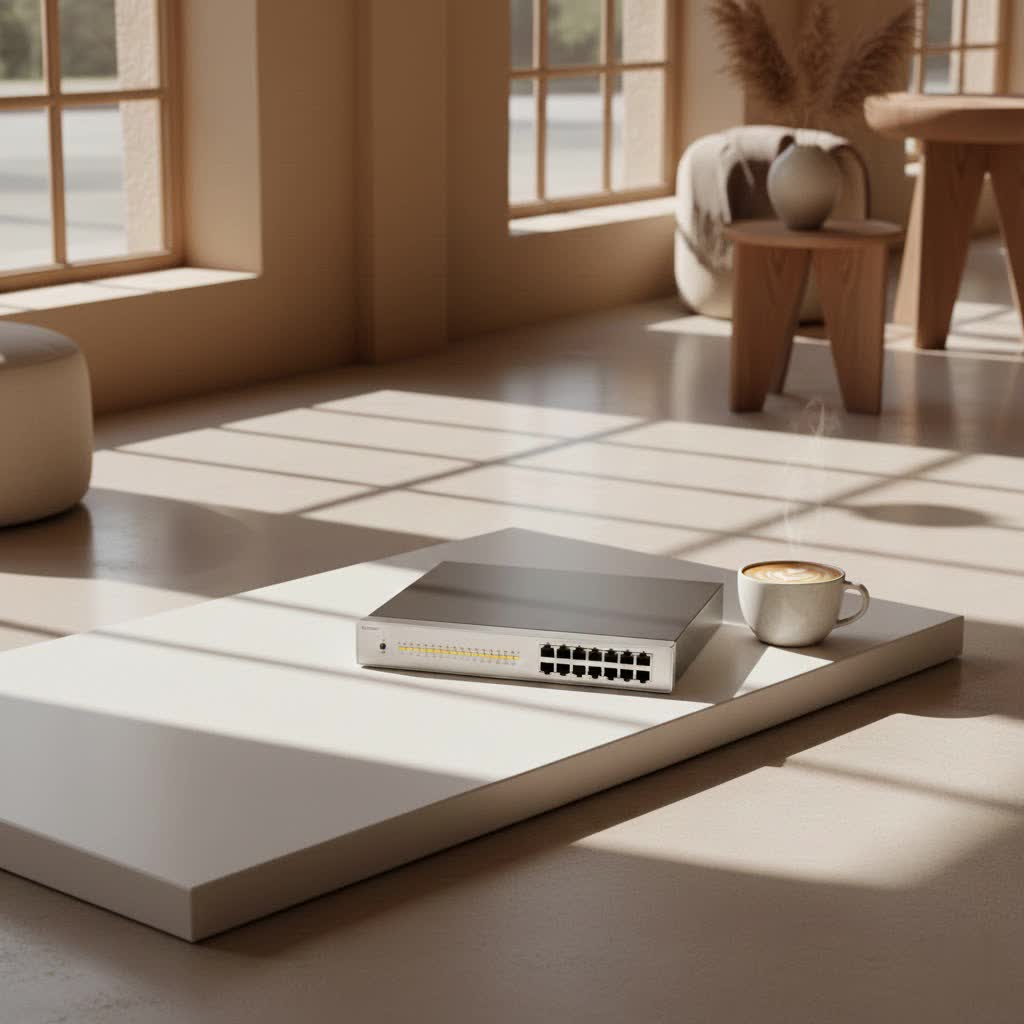
At its core, a network switch is like the traffic controller of your local network, directing data packets only to where they need to go. Unlike a hub, which broadcasts data to every connected device, a switch intelligently forwards data to its intended recipient, dramatically improving network efficiency and performance. In simpler terms, if your network is a highway, the switch is the smart intersection, ensuring cars (data) get to their destination quickly without unnecessary detours or congestion.
While traditional IT switches are designed for general data traffic—think emails, file transfers, and web browsing—the Netgear M4250 takes a specialized approach. It stands apart because it was engineered from the ground up specifically for the unique demands of AV over IP. This means it doesn’t just manage data; it handles high-bandwidth, latency-sensitive audio and video streams with precision, ensuring crystal-clear visuals and perfectly synchronized sound. Everything from its hardware design to its user interface reflects this dedicated focus, making the Netgear M4250 a distinctly different beast from its IT-centric cousins.
The Netgear M4250 Series: Engineered for AV Over IP Excellence
The creation of the Netgear M4250 series was a direct response to the growing challenge of implementing AV over IP. As more audio and video systems transitioned from traditional analog cabling or HDBaseT to IP networks, AV professionals faced a steep learning curve with complex IT jargon and configurations. Netgear recognized this gap and developed the M4250 line to bridge the divide, combining their extensive networking expertise with insights from leading AV industry specialists. The result is a switch series that truly speaks the language of AV.
Let’s unpack some of the standout features that make the Netgear M4250 a game-changer:
Purpose-Built AV GUI: Your Intuitive Control Center
|
Our Picks for the Best Network Switch in 2026
As an Amazon Associate I earn from qualifying purchases.
|
||
| Num | Product | Action |
|---|---|---|
| 1 | BrosTrend 2.5Gb Switch, 8 Port Network Switch 2.5 Gigabit, Unmanaged Ethernet Switch for Game Console, NAS, PC, Computer Networking Switch Plug & Play Fanless, Desktop Wall Mount, Lifetime Protection |

|
| 2 | TP-Link 24 Port Gigabit Ethernet Switch Desktop/ Rackmount Plug & Play Shielded Ports Sturdy Metal Fanless Quiet Traffic Optimization Unmanaged (TL-SG1024S) |
|
| 3 | TP-Link 8 Port Gigabit Ethernet Network Switch - Ethernet Splitter - Plug & Play - Fanless - Sturdy Metal w/ Shielded Ports - Traffic Optimization - Unmanaged - Lifetime Protection (TL-SG108) |
|
| 4 | TP-Link Litewave 5 Port Gigabit Ethernet Switch - Desktop Ethernet Splitter - Unshielded Network Switch - Plug & Play - Fanless Quiet - Unmanaged (LS1005G) |
|
| 5 | TP-Link TL-SG105, 5 Port Gigabit Unmanaged Ethernet Switch, Network Hub, Ethernet Splitter, Plug & Play, Fanless Metal Design, Shielded Ports, Traffic Optimization |
|
| 6 | TP-Link 5-Port Gigabit Ethernet Easy Smart Switch- Plug and Play - Desktop - Sturdy Metal w/Shielded Ports - Limited Lifetime Replacement (TL-SG105E), Black… |
|
| 7 | TP-Link TL-SG105S-M2 - 5-Port Multi-Gigabit 2.5G Ethernet Switch - Unmanaged Network Switch - Ethernet Splitter - Plug & Play - Desktop/Wall Mount - Silent Operation |
|
| 8 | UGREEN Ethernet Switch, 5 Port Gigabit Ethernet Splitter, Plug & Play, Wall Mount & Desktop Network Switch Hub, Unmanaged, Compact, with LED, Fanless Quiet, for Internet Cable, Laptop, Router, NAS |
|
| 9 | UGREEN 16 Port Gigabit Switch, Plug & Play Ethernt Switch, Standard/VLAN Mode, Unmanaged, Sturdy Metal, Fanless Quiet, Desktop & Wall Mount Network LAN Splitter Hub for Laptop, Printer, NAS, Router |
|
| 10 | NETGEAR 8-Port Gigabit Ethernet Unmanaged Essentials Switch (GS308) - Home Network Hub, Office Ethernet Splitter, Plug-and-Play, Silent Operation, Desktop or Wall Mount |
|
Perhaps the most revolutionary aspect of the Netgear M4250 is its dedicated AV Graphical User Interface (GUI). Forget the intimidating command-line interfaces or overly complex IT menus. The AV GUI presents common AV controls right upfront, using terminology familiar to audio and video professionals. It features user-selectable profiles for popular AV platforms like Dante, AES67, Q-SYS, NVX, NDI, and SDVoE. This means you can often configure complex multicast settings with just a few clicks, drastically cutting down setup time. It’s like having a specialized co-pilot for your AV network.
NETGEAR IGMP Plus™: Flawless Multicast, Simplified
Multicasting is essential for efficient AV over IP distribution, but it can be notoriously tricky to configure on standard switches. The Netgear M4250 integrates NETGEAR IGMP Plus™, a proprietary feature that simplifies multicast management. This pre-configuration enables plug-and-play functionality with leading encoders and decoders, ensuring that video streams are delivered flawlessly only to the devices that need them, preventing network floods and maintaining optimal performance. It’s designed to make complex multicast setups feel effortlessly intuitive.
Robust PoE/PoE++ Capabilities: Powering Your AV Ecosystem
Many modern AV devices, such as IP cameras, video encoders, decoders, and even some displays, require Power over Ethernet (PoE). The Netgear M4250 series offers extensive PoE capabilities, supporting both PoE+ (up to 30 Watts per port) and Ultra90 PoE++ (up to 90 Watts per port) models. This means you can power your devices directly through the Ethernet cable, reducing cable clutter, simplifying power management, and offering greater flexibility in device placement. Having centralized power control also allows you to easily manage the power status of your PoE devices.
Thoughtful Hardware Design: Integration in Mind
The physical design of the Netgear M4250 switches reflects a deep understanding of AV installation environments. Unlike many IT switches with front-facing ports, the M4250 typically places all power and network cabling neatly at the rear, aligning with traditional rack-mounted AV equipment. This creates a much cleaner, more professional-looking installation. For those unique scenarios where front-facing ports are preferred, the M4250 even includes recessed rackmount ears for reverse mounting. Additionally, many models feature auto-adjusting or fanless designs, crucial for sound-sensitive environments like recording studios or conference rooms where even a whisper of fan noise can be disruptive.
AVB Support: Precision for Critical Applications
For applications demanding extremely low latency and precise synchronization, such as live performances where lip-sync is critical, Audio Video Bridging (AVB) is an invaluable standard. While an optional license, the Netgear M4250 series switches are built to support AVB, ensuring superior synchronization and reduced latency when transmitting multimedia content over the network. This commitment to industry standards further solidifies the Netgear M4250’s role in high-stakes AV deployments.
Choosing the Right Netgear M4250 for Your Setup
Selecting the perfect Netgear M4250 switch for your specific AV deployment involves considering a few critical factors to ensure optimal performance and value:
- Port Count and Bandwidth: Assess the number of AV devices you need to connect. While the M4250 series targets widespread 1Gbps codecs, many models offer 10Gbps uplinks for connecting to a core network or for larger video deployments. Some even include multi-gigabit Ethernet ports. Match your switch to your AV system’s bandwidth needs—1G for most audio, 10G or higher for high-resolution video.
- PoE Budget: Determine the total power requirements of your PoE-powered devices. The Netgear M4250 comes in various PoE+ and PoE++ configurations with different total power budgets. Always ensure your chosen switch can adequately power all connected devices with a bit of headroom.
- Specific AV Protocols: While the M4250 supports a broad range of protocols, if your primary deployment relies heavily on, say, Dante audio or NDI video, ensure the switch has pre-configured profiles or easy configuration options for those specific standards. The AV GUI makes this incredibly simple.
- Environmental Factors: For quiet environments like studios or meeting rooms, look for fanless models or those with intelligent fan controls that can operate silently under low loads. The M4250’s thoughtful design caters to these scenarios.
- Scalability: Consider your future needs. While the M4250 isn’t designed for stacking like some higher-end M4300 switches, understanding your growth path will help you select a model that can expand with your projects.
Getting Started: Basic Setup and Configuration of Your Netgear M4250
Configuring a network switch, especially one optimized for AV, might seem daunting at first glance. However, the Netgear M4250 is designed for simplicity. Here’s a basic roadmap to get you up and running:
Initial Connection Methods
You have several ways to connect to your Netgear M4250 switch for initial configuration:
- Out-of-Band (OOB) Port: Many M4250 models include a dedicated OOB management port. This is often the easiest way to access the switch’s interface without interfering with your AV traffic. The default IP for the OOB port is typically
192.168.0.239. - Ethernet Network Ports: You can connect your computer to any standard Ethernet port on the switch. If your computer is set to obtain an IP address automatically (DHCP), it will often self-assign a link-local address in the
169.254.x.xrange. The default IP for these ports is usually169.254.100.100. Alternatively, you can configure your computer with a static IP address within the169.254.0.0/16subnet, such as169.254.100.201. - Console Port (CLI): For those who prefer command-line interfaces, the M4250 also offers a console port (either USB-C or RJ-45 RS232). You’ll need a console cable and a terminal emulation program (like PuTTY) on your computer.
Accessing the AV GUI
Once connected, launch a web browser and enter the appropriate default IP address (e.g., http://192.168.0.239 for the OOB port). You’ll be presented with a login page offering options for the “AV UI” or “Main UI.” For simplified AV configuration, always choose the AV UI.
For your first login:
- Username:
admin - Password: Leave it blank (you’ll be prompted to create a new password immediately for security).
After setting your new password, you’ll enter the intuitive AV GUI.
Applying AV Profiles: Instant Configuration
The true power of the Netgear M4250’s AV GUI lies in its pre-configured profiles. Navigating to the “Network Profiles” section, you’ll find a list of certified profiles for various AV applications and protocols. Simply select the profile that matches your AV system (e.g., “Video with Dante Audio,” “NDI 5,” “Q-SYS”), then assign it to the specific ports your AV devices are connected to. The switch will automatically apply all the necessary settings, including IGMP, VLANs, and QoS, ensuring optimal performance for your chosen application.
As Alex Tran, Lead Network Architect at VGLan, often says, “The Netgear M4250’s AV GUI is a breath of fresh air. It takes complex network theory and distills it into actionable, AV-centric profiles, letting integrators focus on the creative aspects of their projects rather than getting bogged down in command lines. It truly empowers the AV professional.”
VLANs for Network Segmentation: Best Practices
For optimal performance and security, especially in larger or more complex AV over IP deployments, segmenting your network using Virtual Local Area Networks (VLANs) is a crucial best practice. The Netgear M4250 makes VLAN creation and assignment straightforward through its AV GUI. You can create separate VLANs for different types of AV traffic (e.g., Dante audio on one VLAN, NDI video on another) and even for general control data. This ensures that high-priority AV streams are isolated from other network traffic, preventing congestion and maintaining low latency.
Troubleshooting Common Netgear M4250 Issues
Even with the most user-friendly equipment, occasional hiccups can occur. Here are some common issues you might encounter with your Netgear M4250 and how to approach them:
- Multicast Stream Glitches or Dropouts: This is often the most common challenge in AV over IP. Ensure NETGEAR IGMP Plus™ is correctly enabled and configured for your specific AV protocol. Verify that your encoders and decoders are also correctly participating in the multicast group. Incorrect IGMP querier settings or multiple queriers can cause issues. The M4250’s AV GUI simplifies these settings considerably.
- PoE Device Not Powering Up: Check your switch’s total PoE budget. If you have too many high-power devices, you might exceed the switch’s capacity. Verify that the port is enabled for PoE and that the device itself is PoE-compliant. The M4250’s interface provides clear visibility into port-by-port PoE status and power consumption.
- Network Connectivity Problems: If devices aren’t communicating, double-check physical cable connections and ensure you’re using appropriate cables (Cat5e or higher for 1Gbps, higher for multi-gigabit). Confirm that IP addresses and subnet masks are correctly configured, especially if you’re using static IPs or VLANs. A quick check of the port status LEDs on the front of the Netgear M4250 can often provide immediate visual feedback.
- Slow Performance or Lag: This could be a sign of network congestion. Ensure your VLANs are properly configured to segment traffic. If you’re running mixed 1Gbps and 10Gbps traffic, ensure your uplink speeds are sufficient. Also, verify that Quality of Service (QoS) settings are prioritizing AV traffic on the Netgear M4250, which the AV profiles typically handle automatically.
- Firmware Updates: Always keep your Netgear M4250’s firmware up to date. Firmware updates often include performance improvements, bug fixes, and support for new AV protocols. You can usually download the latest firmware from the Netgear support website and upload it via the switch’s web interface. Regular updates are crucial for maintaining security and optimal performance.
Frequently Asked Questions About the Netgear M4250
Here are some common questions we get about the Netgear M4250:
Q1: What exactly is AV over IP and why is the M4250 ideal for it?
AV over IP refers to distributing audio and video signals over standard IP networks, using Ethernet cables and network switches instead of traditional dedicated AV cabling. The Netgear M4250 is ideal because it’s specifically engineered for this purpose, with features like an AV-centric GUI, IGMP Plus for multicast, and PoE capabilities that simplify integration and ensure reliable, low-latency performance for AV streams.
Q2: Can I use the Netgear M4250 for regular IT purposes too?
Yes, while the Netgear M4250 is optimized for AV over IP, it is a fully managed Layer 2/3 switch that can certainly handle regular IT traffic. It provides a separate “Main UI” (IT GUI) for more advanced networking configurations. However, its primary value proposition and ease-of-use features are tailored for AV applications.
Q3: How does the AV GUI simplify configuration?
The AV GUI on the Netgear M4250 presents network settings in an intuitive, AV-friendly language. It features port-based profiles for common AV protocols like Dante, NDI, and Q-SYS, allowing users to apply complex configurations with just a few clicks, rather than manually entering intricate network parameters.
Q4: What is the difference between PoE+ and PoE++ on the M4250?
PoE+ (IEEE 802.3at) delivers up to 30 Watts of power per port, which is sufficient for many IP cameras, wireless access points, and some video encoders. PoE++ (IEEE 802.3bt, also known as Ultra90 PoE++) can deliver significantly more power, up to 90 Watts per port, necessary for higher-power devices like PTZ cameras, larger LED displays, or even compact PCs. The Netgear M4250 series offers models with both capabilities.
Q5: Is an AVB license necessary for all M4250 models?
AVB (Audio Video Bridging) support on the Netgear M4250 is typically available as an optional license. It’s not necessary for all AV over IP applications, but it is highly beneficial and often required for specific scenarios demanding extremely low latency and precise synchronization, such as professional live audio production.
Q6: How do I update the firmware on my M4250 switch?
You can update the firmware on your Netgear M4250 by downloading the latest firmware file from the official Netgear support website. Then, log into the switch’s web interface (either AV UI or Main UI), navigate to the maintenance or system settings section, and use the firmware update utility to upload and apply the new firmware file. Always ensure you follow Netgear’s specific instructions for the update process.
Conclusion: Empowering Your AV Network with Netgear M4250
The Netgear M4250 series represents a significant leap forward in network infrastructure for the professional AV industry. By providing a platform that is purpose-built, intuitively designed, and robustly engineered for AV over IP, Netgear has truly democratized complex networked media deployments. From its revolutionary AV GUI and simplified multicast management with NETGEAR IGMP Plus™ to its powerful PoE capabilities and thoughtful physical design, every aspect of the Netgear M4250 is crafted to help AV professionals achieve flawless performance with greater ease and confidence.
Whether you’re setting up a digital signage network, a corporate conferencing system, or a live event production, the Netgear M4250 empowers you to build reliable, high-performing AV networks without needing a degree in IT. Embrace the future of AV over IP, and let the Netgear M4250 be the trusted backbone of your next project. It’s time to build smarter, perform better, and experience the true potential of networked audio and video.
