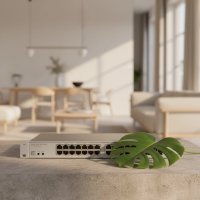
Ever feel like your home network is bursting at the seams? With smart TVs, gaming consoles, streaming devices, and home office setups all vying for bandwidth, your router’s built-in ports might not be cutting it. That’s where a home network switch comes into play, acting as your network’s trusty traffic controller, ensuring all your devices get the smooth, fast connection they deserve. If you’re looking to expand your wired network effortlessly and boost performance, understanding the right home network switch is your next big step.
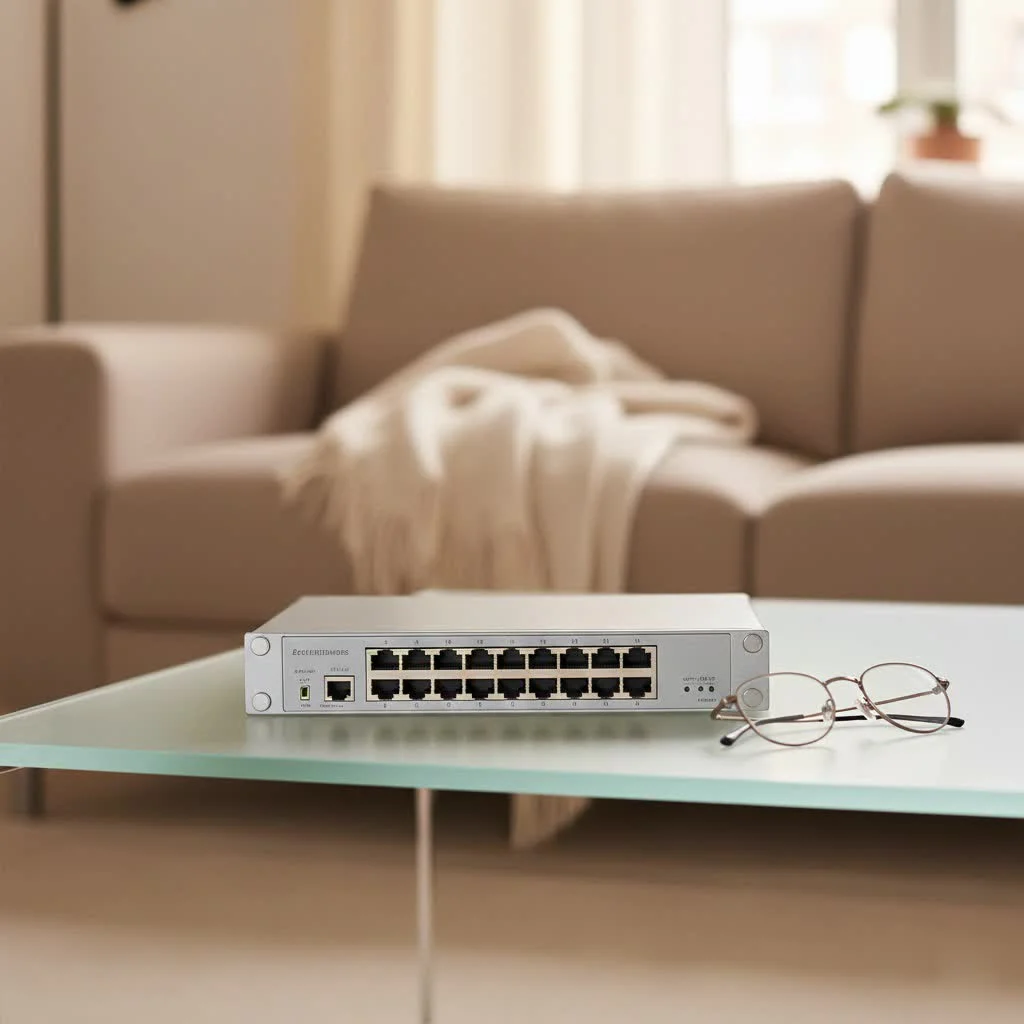
What Exactly is a Home Network Switch?
Think of a home network switch as a central hub that lets multiple wired devices on your local network (LAN) talk to each other efficiently. While your router is busy connecting your home network to the internet, the switch takes care of the internal chatter, directing data packets directly to their intended recipient based on their unique physical address (MAC address). This isn’t just about adding more ports; it’s about optimizing your internal network traffic, significantly reducing latency and congestion compared to relying solely on Wi-Fi or daisy-chaining devices.
As network architect Ethan Vance, a seasoned expert in the field, often remarks, “A well-chosen home network switch is like adding extra lanes to your digital highway – it ensures smooth, fast traffic for all your connected devices without the usual broadband traffic jams.”
Types of Home Network Switches: Finding Your Perfect Match
Choosing the right home network switch can seem daunting with all the options out there, but for most households, it boils down to a few key types.
Unmanaged Switches: Simplicity at Its Best
What is an unmanaged switch? An unmanaged switch is the epitome of “plug-and-play.” You connect it, and it just works, without requiring any configuration or advanced setup.
These are by far the most popular choice for home users due to their ease of installation and cost-effectiveness. They’re perfect for expanding the number of Ethernet ports your router offers, whether you need to connect a few extra devices in your media center or wire up a new home office. You simply plug your router into one port and your devices into the others, and you’re good to go.
Managed Switches: Power for the Pros (or Power Users)
Do you need a managed switch for your home? Generally, no, unless you’re a networking enthusiast with very specific needs. Managed switches offer advanced features like Virtual Local Area Networks (VLANs) for segmenting your network, Quality of Service (QoS) for prioritizing certain traffic (like gaming or streaming), and network monitoring tools. While powerful, they require technical knowledge to configure and manage, making them overkill for the average household. Most home users will find the complexity and higher price tag of a managed switch unnecessary.
Power over Ethernet (PoE) Switches: One Cable, Double Duty
|
Our Picks for the Best Network Switch in 2026
As an Amazon Associate I earn from qualifying purchases.
|
||
| Num | Product | Action |
|---|---|---|
| 1 | NETGEAR 8-Port Gigabit Ethernet Unmanaged Essentials Switch (GS308) - Home Network Hub, Office Ethernet Splitter, Plug-and-Play, Silent Operation, Desktop or Wall Mount |

|
| 2 | TP-Link Litewave 5 Port Gigabit Ethernet Switch - Desktop Ethernet Splitter - Unshielded Network Switch - Plug & Play - Fanless Quiet - Unmanaged (LS1005G) |
|
| 3 | TP-Link 24 Port Gigabit Ethernet Switch Desktop/ Rackmount Plug & Play Shielded Ports Sturdy Metal Fanless Quiet Traffic Optimization Unmanaged (TL-SG1024S) |
|
| 4 | TP-Link TL-SG105S-M2 - 5-Port Multi-Gigabit 2.5G Ethernet Switch - Unmanaged Network Switch - Ethernet Splitter - Plug & Play - Desktop/Wall Mount - Silent Operation |
|
| 5 | BrosTrend 2.5Gb Switch, 8 Port Network Switch 2.5 Gigabit, Unmanaged Ethernet Switch for Game Console, NAS, PC, Computer Networking Switch Plug & Play Fanless, Desktop Wall Mount, Lifetime Protection |
|
| 6 | UGREEN Ethernet Switch, 5 Port Gigabit Ethernet Splitter, Plug & Play, Wall Mount & Desktop Network Switch Hub, Unmanaged, Compact, with LED, Fanless Quiet, for Internet Cable, Laptop, Router, NAS |
|
| 7 | UGREEN 16 Port Gigabit Switch, Plug & Play Ethernt Switch, Standard/VLAN Mode, Unmanaged, Sturdy Metal, Fanless Quiet, Desktop & Wall Mount Network LAN Splitter Hub for Laptop, Printer, NAS, Router |
|
| 8 | TP-Link 5-Port Gigabit Ethernet Easy Smart Switch- Plug and Play - Desktop - Sturdy Metal w/Shielded Ports - Limited Lifetime Replacement (TL-SG105E), Black… |
|
| 9 | TP-Link 8 Port Gigabit Ethernet Network Switch - Ethernet Splitter - Plug & Play - Fanless - Sturdy Metal w/ Shielded Ports - Traffic Optimization - Unmanaged - Lifetime Protection (TL-SG108) |
|
| 10 | TP-Link TL-SG105, 5 Port Gigabit Unmanaged Ethernet Switch, Network Hub, Ethernet Splitter, Plug & Play, Fanless Metal Design, Shielded Ports, Traffic Optimization |
|
What is a PoE switch and when is it useful at home? A PoE switch is a fantastic innovation that allows a single Ethernet cable to deliver both data and electrical power to compatible devices. This means you can power devices like IP security cameras, Wi-Fi access points, or VoIP phones without needing a separate power adapter near each device. It drastically simplifies cabling and offers more flexible placement options. When considering a PoE switch, remember to check its total power budget and ensure it can adequately power all your connected PoE devices.
How to Choose the Right Home Network Switch for Your Needs
Selecting the ideal home network switch doesn’t have to be a head-scratcher. Here’s what to look for to ensure it meets your current and future demands.
Port Count: Planning for Today and Tomorrow
How many ports do you need on a home network switch? Start by counting all the wired devices you currently have, such as your desktop PC, smart TV, gaming console, network-attached storage (NAS), and any other smart home hubs. Then, critically, consider future expansion. Technology evolves rapidly, and you might add more devices like another PC, a new console, or more IP cameras. Switches commonly come with 5, 8, 16, or even more ports. Remember, one port will always be used to connect the switch to your router, so a 5-port switch effectively gives you 4 new usable ports. It’s always wise to pick a switch with a few extra ports than you think you need right now.
Speed: Don’t Be a Bottleneck
What speed should your home network switch be? For modern home networks, Gigabit Ethernet (1000 Mbps) is the standard and highly recommended. This ensures that your internal network traffic for activities like 4K streaming, online gaming, and large file transfers won’t be bottlenecked by a slower switch. While Fast Ethernet (10/100 Mbps) switches exist and are cheaper, they are largely outdated for current demands. If you have a Wi-Fi 6 router or 2.5 Gigabit devices, you might even consider a 2.5G switch to fully utilize those speeds. Always prioritize a Gigabit home network switch to future-proof your setup.
Budget & Brand: Quality Meets Value
While it’s tempting to go for the cheapest option, investing a little more in a reputable brand often pays off in terms of reliability and longevity. Brands like TP-Link, Netgear, and Ubiquiti are well-regarded for their consumer-grade and prosumer networking equipment. Compare features like port count, speed, and whether PoE is included against your budget. For an unmanaged Gigabit switch, you can find excellent value without breaking the bank.
Noise and Aesthetics: Blending into Your Home
If your home network switch will be in a living area, noise can be a factor. Many smaller unmanaged switches are “fanless,” meaning they operate silently, which is a huge plus for home environments. Also, consider the physical size and design to ensure it blends seamlessly into your space.
Setting Up Your Home Network Switch: A Simple Step-by-Step Guide
Getting your new home network switch up and running is surprisingly straightforward, especially if it’s an unmanaged model.
The Essentials You’ll Need
- Your new home network switch
- Enough Ethernet cables (Cat5e or Cat6 are common) for your router connection and all your devices
- A power outlet for your switch
Step-by-Step Connection
- Preparation is Key: Before you begin, power off your internet modem, Wi-Fi router, and the new home network switch. Safety first!
- Connect to Your Router: Take one Ethernet cable and plug one end into any available LAN port on your Wi-Fi router. Connect the other end of this cable into any port on your new unmanaged home network switch. Most unmanaged switches don’t have a dedicated “uplink” port, making setup even easier.
- Connect Your Devices: Now, take your remaining Ethernet cables and connect your devices (like your PC, smart TV, or game console) to the other open ports on the switch.
- Power On: Plug in your home network switch’s power adapter to a wall outlet.
- Reboot in Order: First, power on your internet modem and wait for it to fully boot up (all indicator lights should be stable). Next, power on your Wi-Fi router and wait for its lights to stabilize. Finally, power on your home network switch.
- Verify the Connection: Look at the LED indicator lights on your switch. For each connected device and the router connection, you should see a solid green or amber light, often with flickering to indicate data activity. If a light is off or shows an error, double-check the cable and connection.
Quick Tips for Managed Switches
If you opted for a managed home network switch, the basic physical connection is similar, but you’ll need an extra step: accessing its web interface. Typically, you connect a computer directly to the switch, find its default IP address (usually in the manual), and then log in via a web browser to configure advanced settings like VLANs or QoS. This is where your expertise (or a quick guide from VGLan!) comes in handy.
Troubleshooting Common Home Network Switch Issues
Even the most robust home network switch can occasionally run into a hiccup. Here are some common issues and quick fixes.
No Power or Device Not Connecting
Issue: Your switch lights are off, or a specific device isn’t getting a network connection.
Fix: Start with the basics. Ensure the switch’s power cord is securely plugged into both the switch and a working wall outlet. If it’s a device-specific issue, check the Ethernet cable connecting that device to the switch. Swap it out for a known good cable and try a different port on the switch. Look at the LED indicators; if a port light is off, it suggests an issue with the cable or the connected device.
Slow Speeds or Intermittent Connection
Issue: Your wired devices are experiencing slower-than-expected speeds or frequently losing connection.
Fix: Faulty or aging Ethernet cables are often the culprits here. Visually inspect all cables for kinks, frays, or damage. Ensure you’re using Cat5e or Cat6 cables for Gigabit speeds. Replacing old or damaged cables can dramatically improve performance. Also, verify that the switch itself supports Gigabit speeds if your devices and router do.
Overheating and Port Overload
Issue: The switch feels unusually hot, or performance drops when many devices are active.
Fix: Ensure your switch has adequate airflow around it. Don’t bury it under a pile of electronics or put it in an enclosed space without ventilation. Many unmanaged switches are fanless and rely on ambient cooling. If you have an unusually high number of devices heavily using bandwidth (e.g., multiple 4K streams and large downloads), you might be overloading a specific port or the switch’s internal capacity. Spreading devices across different ports can sometimes help distribute the load more evenly.
When to Reset Your Switch
Issue: Persistent, unexplained network problems with your switch.
Fix: A simple reboot can often resolve transient software glitches. Unplug the switch from power, wait 10-15 seconds, and then plug it back in. For managed switches, there’s usually a reset button or an option in the web interface for a factory reset, but be aware this will wipe all custom configurations. Only perform a factory reset if you know how to reconfigure it or are ready to start from scratch.
Frequently Asked Questions About Home Network Switches
Q: Can I connect multiple switches to my router?
A: Absolutely! You can connect multiple home network switches to your router to further expand your wired network. Simply plug each switch into a separate LAN port on your router.
Q: Will adding a switch slow down my internet?
A: No, a home network switch should not slow down your internet connection. Its primary job is to manage traffic within your local network. In fact, by providing dedicated wired connections, it can free up Wi-Fi bandwidth for wireless devices, potentially improving overall network performance.
Q: What’s the difference between a switch and a hub?
A: While both connect devices, a switch is much “smarter” than an old-fashioned hub. A hub simply broadcasts all data to all connected devices, leading to collisions and inefficiency. A switch, however, learns the MAC addresses of connected devices and directs data packets only to their intended destination, making it far more efficient and faster.
Q: Do I need special cables for a home network switch?
A: For most modern home network switches, standard Ethernet cables (Cat5e or Cat6) are sufficient. Cat5e supports Gigabit speeds over typical home distances, while Cat6 offers better performance and future-proofing, especially for 2.5G/10G setups.
Q: Where should I place my home network switch?
A: Ideally, place your switch in a central location, close to the devices you want to connect via Ethernet. Ensure it’s in a well-ventilated area, away from direct heat sources, and easily accessible for cabling.
Conclusion
A home network switch is an indispensable tool for expanding and optimizing your wired network. Whether you’re a casual user looking to add a few more devices or a power user seeking dedicated connections for gaming and streaming, a home network switch provides the robust, high-speed connectivity your digital life demands. By understanding the types available, knowing how to choose the right one, and confidently setting it up, you can transform your home network into a reliable, high-performance powerhouse. So go ahead, plug in, and experience the difference a quality home network switch can make for your connected world.
Get our weekly buyer guide
Practical specs, not advice. Unsubscribe anytime.