A UniFi switch is a critical component for building a robust, manageable, and scalable network, offering centralized management, Power over Ethernet (PoE) capabilities, and advanced Layer 2 and Layer 3 features. These switches integrate seamlessly into Ubiquiti’s UniFi ecosystem, providing a unified management experience through the UniFi Network Controller, which simplifies complex network configurations for both home users and IT professionals.
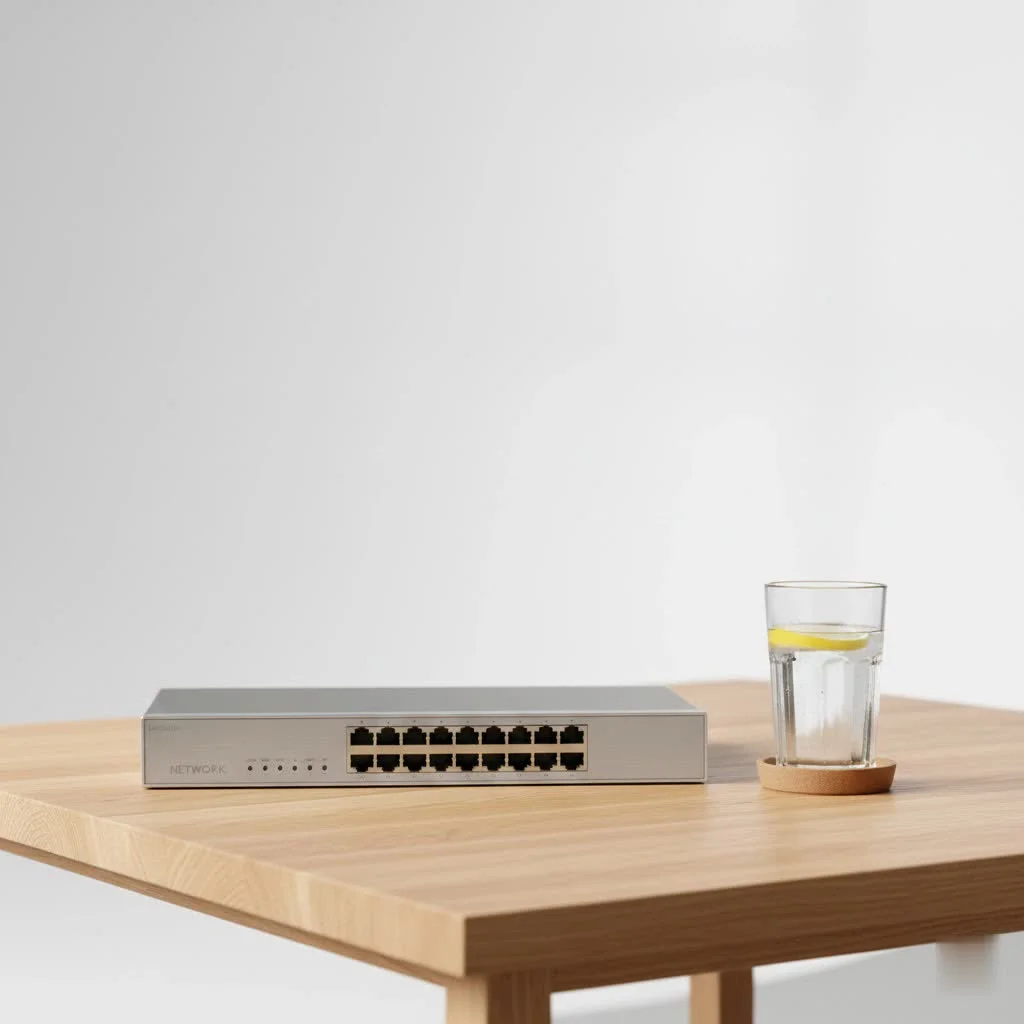
This comprehensive guide will walk you through everything you need to know about UniFi switches, from their core functionality and diverse types to practical setup advice and troubleshooting tips. By the end, you’ll be equipped to confidently select, configure, and optimize a UniFi switch to meet your specific networking demands.
What Makes a UniFi Switch Stand Out?
A UniFi switch isn’t just another networking device; it’s a critical component of Ubiquiti’s integrated UniFi ecosystem. This integration is what truly sets it apart, providing a unified management experience that simplifies complex network configurations and enhances overall efficiency.
Centralized Management with UniFi Network Controller
Imagine controlling your entire network from a single, easy-to-use interface. That’s the promise of the UniFi Network Controller. Whether running as software on a dedicated server, a UniFi Cloud Key, or integrated into a UniFi Dream Machine, this powerful platform allows you to:
- View Network Topology: Get a visual overview of all your connected UniFi devices.
- Monitor Performance: Keep an eye on traffic flow, port usage, and device health in real-time.
- Make Configuration Changes: Apply settings across multiple switches and access points with just a few clicks.
|
Our Picks for the Best Network Switch in 2026
As an Amazon Associate I earn from qualifying purchases.
|
||
| Num | Product | Action |
|---|---|---|
| 1 | UGREEN Ethernet Switch, 5 Port Gigabit Ethernet Splitter, Plug & Play, Wall Mount & Desktop Network Switch Hub, Unmanaged, Compact, with LED, Fanless Quiet, for Internet Cable, Laptop, Router, NAS |

|
| 2 | TP-Link 8 Port Gigabit Ethernet Network Switch - Ethernet Splitter - Plug & Play - Fanless - Sturdy Metal w/ Shielded Ports - Traffic Optimization - Unmanaged - Lifetime Protection (TL-SG108) |
|
| 3 | TP-Link 24 Port Gigabit Ethernet Switch Desktop/ Rackmount Plug & Play Shielded Ports Sturdy Metal Fanless Quiet Traffic Optimization Unmanaged (TL-SG1024S) |
|
| 4 | BrosTrend 2.5Gb Switch, 8 Port Network Switch 2.5 Gigabit, Unmanaged Ethernet Switch for Game Console, NAS, PC, Computer Networking Switch Plug & Play Fanless, Desktop Wall Mount, Lifetime Protection |
|
| 5 | TP-Link 5-Port Gigabit Ethernet Easy Smart Switch- Plug and Play - Desktop - Sturdy Metal w/Shielded Ports - Limited Lifetime Replacement (TL-SG105E), Black… |
|
| 6 | NETGEAR 8-Port Gigabit Ethernet Unmanaged Essentials Switch (GS308) - Home Network Hub, Office Ethernet Splitter, Plug-and-Play, Silent Operation, Desktop or Wall Mount |
|
| 7 | TP-Link Litewave 5 Port Gigabit Ethernet Switch - Desktop Ethernet Splitter - Unshielded Network Switch - Plug & Play - Fanless Quiet - Unmanaged (LS1005G) |
|
| 8 | TP-Link TL-SG105, 5 Port Gigabit Unmanaged Ethernet Switch, Network Hub, Ethernet Splitter, Plug & Play, Fanless Metal Design, Shielded Ports, Traffic Optimization |
|
| 9 | TP-Link TL-SG105S-M2 - 5-Port Multi-Gigabit 2.5G Ethernet Switch - Unmanaged Network Switch - Ethernet Splitter - Plug & Play - Desktop/Wall Mount - Silent Operation |
|
| 10 | UGREEN 16 Port Gigabit Switch, Plug & Play Ethernt Switch, Standard/VLAN Mode, Unmanaged, Sturdy Metal, Fanless Quiet, Desktop & Wall Mount Network LAN Splitter Hub for Laptop, Printer, NAS, Router |
|
This centralized approach transforms network administration from a daunting task into a streamlined process, making it far more accessible than traditional command-line interface (CLI) switches.
Power Over Ethernet (PoE) Capabilities
One of the most compelling features of many UniFi switches is their Power over Ethernet (PoE) capabilities. PoE allows network cables to transmit both data and electrical power to compatible devices, eliminating the need for separate power outlets and adapters. This is a major upgrade for deploying devices like:
- Wireless Access Points (APs): Place your APs in optimal locations without worrying about power accessibility.
- IP Cameras: Power security cameras directly through the network cable, simplifying installation and reducing clutter.
- VoIP Phones: Deploy voice communication systems with fewer cables and easier management.
UniFi offers various PoE standards, including 802.3af (PoE), 802.3at (PoE+), and 802.3bt (PoE++), providing different power budgets per port to accommodate a wide range of devices. Understanding your total PoE budget and individual device power requirements is crucial for a stable network.
Advanced Features for Network Control
UniFi switches come packed with advanced features that provide granular control over your network traffic:
- VLAN Support: VLANs (Virtual Local Area Networks) allow you to segment your network into smaller, isolated logical networks. This enhances security by preventing unauthorized access between segments (e.g., guest Wi-Fi isolated from your business network) and improves performance by reducing broadcast traffic.
- Quality of Service (QoS): QoS lets you prioritize certain types of network traffic, ensuring critical applications like VoIP calls or video conferencing receive sufficient bandwidth, even during periods of high network utilization.
- Link Aggregation (LAG): LAG, also known as LACP, combines multiple physical network links into a single logical link. This increases available bandwidth and provides redundancy, meaning if one link fails, traffic can still flow over the others.
- Spanning Tree Protocol (STP/RSTP): STP and its faster variant, RSTP, prevent network loops, which can bring down an entire network. They do this by blocking redundant paths until a primary path fails, ensuring network stability.
Choosing the Right UniFi Switch for Your Needs
With a diverse lineup of UniFi switches, selecting the perfect model can seem daunting. However, by considering your specific requirements, the choice becomes much clearer.
Understanding Different UniFi Switch Series
Ubiquiti categorizes its UniFi switches into several series, each designed for different scales and use cases:
- UniFi Switch Lite: Compact, fanless desktop switches ideal for small home networks or adding PoE to specific locations. They offer basic Layer 2 features.
- UniFi Switch Flex: Extremely versatile, often PoE-powered switches designed for flexible deployments, including outdoor use with appropriate enclosures. They are perfect for extending network and PoE capabilities where power outlets are scarce.
- UniFi Switch Standard (USW-PoE): A good balance of features and ports for home users and small businesses, often fanless for silent operation. They provide more PoE ports and a higher budget than Lite models.
- UniFi Switch Pro: These switches step up in capacity, offering more Gigabit Ethernet ports, higher PoE budgets, 10 Gbps SFP+ uplinks for fiber connectivity, and often Layer 2+/Layer 3 routing features. They are commonly rack-mountable and suitable for growing businesses.
- UniFi Switch Enterprise: At the top tier, Enterprise switches boast multi-gigabit (2.5 Gbps, 10 Gbps) RJ45 ports, 25 Gbps SFP28 uplinks, and advanced Layer 3 capabilities like OSPF/BGP routing, designed for high-throughput, demanding network environments.
- UniFi Switch Aggregation/XG: Specialized switches designed for high-speed fiber uplinks (10 Gbps, 25 Gbps, 100 Gbps) between other switches or servers, providing core network backbone functionality.
Key Considerations for Selection
When choosing a UniFi switch, keep these factors in mind:
- Port Count: How many devices do you need to connect? UniFi switches range from 5-port mini models to 48-port enterprise behemoths. Always factor in potential future expansion.
- PoE Budget: How many PoE devices will you power, and what are their individual power requirements? Ensure the switch’s total PoE budget (measured in Watts) can accommodate all your devices with some headroom. Insufficient power budget is a common issue that can lead to devices dropping offline or failing to power on.
- Uplink Speed and Type: Do you need high-speed connections to your router or other switches? Consider models with SFP/SFP+ ports for fiber uplinks if you’re dealing with long distances or require 10 Gbps or faster connectivity. Some newer models also offer 2.5 Gbps or 10 Gbps RJ45 ports.
- Form Factor: Is it a desktop setup, or do you need a rack-mountable switch for a server closet? UniFi offers both. Also, consider fanless models if noise is a concern for your environment.
- Layer 3 Features: For more complex networks requiring inter-VLAN routing or advanced routing protocols, opt for Pro or Enterprise series switches with Layer 3 capabilities.
Setting Up Your UniFi Switch: A Step-by-Step Guide
Getting your UniFi switch up and running is typically a straightforward process, thanks to the intuitive UniFi Network Controller.
Initial Physical Connection
- Power Up: Connect the UniFi switch to a power source using the provided adapter.
- Uplink Connection: Connect one of the switch’s ports to your main router or an upstream switch using an Ethernet cable. This is your uplink to the rest of your network. If using SFP/SFP+, ensure you have the correct transceivers and fiber cables.
- Connect Devices: Plug your network devices (computers, access points, IP cameras, etc.) into the remaining ports on the UniFi switch. For PoE devices, they should power on automatically if the switch’s PoE budget and port settings allow it.
Adopting Your Switch in UniFi Network Controller
Once physically connected, your UniFi switch needs to be “adopted” by your UniFi Network Controller.
- Launch Controller: Open your UniFi Network Controller software, or access your Cloud Key/Dream Machine via its IP address or the UniFi Network mobile app.
- Device Discovery: The controller should automatically discover your new UniFi switch and list it under the “Devices” section with a “Pending Adoption” status.
- Adopt: Click the “Adopt” button next to your switch. The controller will then provision the switch with your network’s default settings and update its firmware if necessary. This process can take a few minutes.
- Confirm Status: Once adopted, the switch’s status will change to “Connected” or “Online,” indicating it’s fully integrated into your UniFi network.
Essential Configuration Steps
With your UniFi switch adopted, you can now fine-tune its configuration:
- VLANs and Port Profiles: Navigate to “Settings” > “Networks” to create new VLANs. Then, go to the “Devices” section, select your switch, and configure individual “Port Profiles” for each port. For example, you can assign a specific VLAN to a port for an IP camera or create a “Trunk” port profile to carry multiple VLANs to a UniFi access point.
- Static IPs for Management: While not strictly necessary for home users, network professionals often recommend assigning static IP addresses to UniFi infrastructure devices (switches, APs) for easier management and troubleshooting, especially within a dedicated management VLAN.
- DHCP Guarding: Ensure DHCP Guarding is enabled (it usually is by default). This feature prevents rogue DHCP servers from disrupting your network by blocking unauthorized DHCP offers.
- Spanning Tree Protocol (STP/RSTP): Verify that STP or RSTP is enabled on your switch to prevent network loops, especially if you have redundant connections or multiple switches. Assigning STP priorities can help manage how traffic flows in case of a loop.
Common UniFi Switch Issues and How to Troubleshoot Them
Even with the best planning, network issues can arise. Here are some common problems you might encounter with your UniFi switch and practical troubleshooting steps.
Device Connectivity Problems
- Device Not Connecting:
- Check Physical Connection: Ensure the Ethernet cable is securely plugged into both the device and the switch port. Try a different cable or port.
- Verify PoE Delivery: If it’s a PoE device, confirm the switch port is configured for PoE and that your switch has sufficient PoE budget. Also, ensure the device is compatible with the PoE standard (e.g., 802.3af/at/bt) the port is supplying.
- Port Status: Check the UniFi Network Controller to see if the port is enabled and not showing as “Disconnected” or “Disabled.”
- Devices Connected But No Network Access:
- VLAN Assignment: The most frequent culprit here is incorrect VLAN assignment. Ensure the switch port’s profile matches the VLAN the connected device expects to be on.
- DHCP Settings: Verify your DHCP server is operational and providing IP addresses. Check if the device is receiving an IP address, or if it has a fallback IP like 192.168.1.20, which indicates a DHCP issue. Look for rogue DHCP servers on your network.
- Firewall Rules: If the device is on a separate VLAN, check your UniFi Gateway/router firewall rules to ensure traffic is allowed between the device’s VLAN and other necessary networks.
PoE Power Delivery Issues
- PoE Devices Not Powering On: As IT expert Clara Nguyen often emphasizes, “A common oversight in network design is underestimating the total PoE power budget. Always calculate your device needs carefully and leave headroom for growth and power spikes.” If PoE devices fail, it’s often due to insufficient total power budget on the switch, or the device requiring a higher PoE standard (e.g., PoE+) than the port provides. Check the switch’s details in the UniFi Controller for its overall PoE budget and individual port power allocation.
- Intermittent Power to PoE Devices: This can indicate the switch is struggling to meet the combined power demands. Reduce the number of high-power PoE devices, or consider a switch with a larger PoE budget. Overheating can also cause intermittent issues; ensure proper ventilation.
Performance Bottlenecks and Slow Speeds
- Slow Network Speeds:
- Cabling Issues: Damaged or old Ethernet cables (e.g., Cat5 instead of Cat5e/6) can limit speeds. Run cable diagnostics from the UniFi Controller if available.
- Network Congestion: Identify if heavy traffic on specific ports or VLANs is causing slowdowns. QoS settings can help prioritize critical traffic.
- Duplex Mismatches: Although less common with auto-negotiation, ensure full-duplex operation on all ports.
- Intermittent Connectivity: Electrical interference, cable damage, or an overheating switch can cause frequent disconnections. Relocate the switch if possible, ensure proper ventilation, and inspect cables.
Firmware and Configuration Quirks
- “Stuck” in Provisioning State: Sometimes, a switch may remain in a “Provisioning” state after adoption or configuration changes. Try restarting the switch via the UniFi Controller, or reboot the entire UniFi Network Controller. Ensure the switch’s firmware is up-to-date.
- Firmware Mismatches: When deploying new devices, ensure all UniFi devices are running compatible firmware versions. Inconsistent firmware can lead to adoption difficulties and performance inconsistencies.
Expert Insight: Maximizing Your UniFi Network’s Potential
“The true power of the UniFi ecosystem lies in its ability to adapt and scale,” says Duong Pham, a veteran network architect at VGLan. “By strategically segmenting your network with VLANs and leveraging the granular control offered by UniFi switches, you’re not just building a network; you’re crafting a highly secure, efficient, and future-proof digital environment. Don’t be afraid to experiment with port profiles and advanced settings – that’s where the real optimization happens!”
Conclusion
The UniFi switch is a formidable tool for anyone looking to build or upgrade a robust, manageable, and scalable network. From its intuitive centralized management and powerful PoE capabilities to its advanced Layer 2 and Layer 3 features, a UniFi switch provides the foundation for a high-performing and secure network infrastructure. By understanding the different models, making informed selection choices, and following best practices for setup and troubleshooting, you can harness the full potential of your UniFi switch and ensure seamless connectivity for years to come.
Ready to take control of your network? Explore the diverse range of UniFi switches today and improve your networking experience. Share your experiences and network setups with us at VGLan.com – we’re always here to help you build a better, smarter network!
Frequently Asked Questions
What is the main benefit of a UniFi switch over a standard unmanaged switch?
The main benefit of a UniFi switch is its centralized management through the UniFi Network Controller, which allows for easy configuration of advanced features like VLANs, QoS, and PoE, unlike unmanaged switches that offer no configuration options.
Do all UniFi switches support Power over Ethernet (PoE)?
No, not all UniFi switches support PoE. Many models do, offering various PoE standards (PoE, PoE+, PoE++), but some switches, especially smaller or aggregation-focused ones, may not provide PoE output. Always check the specifications for “PoE” or “PoE+” in the model name or description.
Can I use a UniFi switch without a UniFi Dream Machine or Cloud Key?
Yes, you can. The UniFi Network Controller software can be installed on a Windows, macOS, or Linux computer. However, a UniFi Dream Machine or Cloud Key provides a dedicated, low-power appliance for hosting the controller, which is often more reliable and convenient for always-on network management.
What is a “Port Profile” in UniFi, and why is it useful?
A Port Profile in UniFi is a predefined set of configurations (like VLANs, PoE settings, speed, duplex) that can be applied to multiple switch ports. It’s useful for quickly and consistently configuring ports, such as setting all access point ports to a specific VLAN trunk or assigning a security camera VLAN to a group of ports.
How do I factory reset a UniFi switch?
To factory reset a UniFi switch, locate the small reset button (often recessed) and hold it down for approximately 5-10 seconds until the LED indicators change. After a successful reset, the switch will return to its default factory settings and become available for adoption in the UniFi Network Controller.
What should I do if my UniFi switch is showing “Disconnected” in the controller?
First, check physical cable connections and power. Ensure the switch is powered on and its uplink is connected to the network. Then, verify the switch has an IP address (check your DHCP server or router). If using VLANs for management, ensure the upstream port is configured correctly for the management VLAN. Finally, consider restarting the switch or, as a last resort, a factory reset if it persists.
Can UniFi switches perform Layer 3 routing?
Yes, some higher-end UniFi switches, particularly from the Pro and Enterprise series, offer Layer 3 routing capabilities. This allows the switch to perform inter-VLAN routing and, in some advanced models, support dynamic routing protocols like OSPF and BGP, reducing reliance on a separate router for internal network traffic.
Get our weekly buyer guide
Practical specs, not advice. Unsubscribe anytime.

I recently installed a UniFi switch at my small office, mainly for its advanced Layer 2 features. It’s been incredibly stable and the performance is excellent. My only minor complaint is that the initial setup took a bit longer than I expected, even with the guide. Once it was up and running though, it’s been smooth sailing and the unified management is a huge plus.
I bought a UniFi switch for my smart home setup, specifically for the PoE to power some new devices. While the PoE works great, I found the interface a little overwhelming at first for a home user. It has a lot of features I probably won’t ever use, and I wish there was a more simplified ‘basic’ mode for less technical users. Still, it gets the job done for powering my devices.
I’ve been using UniFi switches for my home network for about a year now, and the centralized management through the UniFi Network Controller is a game-changer. It makes configuring VLANs and monitoring traffic so much easier than my old setup. The PoE capabilities are also fantastic for powering my access points and cameras without needing extra power bricks everywhere. Definitely recommend for anyone looking to upgrade their home or small business network.
As an IT professional, I appreciate the scalability that UniFi switches offer. We’ve deployed them in several client environments, from small businesses to larger setups, and they always integrate seamlessly. The ability to manage everything from a single pane of glass is invaluable, especially when dealing with multiple sites. The robust build quality is also a big factor for me.