Ubiquiti UniFi switches are a leading choice for managing and distributing network traffic efficiently, bridging the gap between complex enterprise solutions and user-friendly accessibility. They offer a comprehensive ecosystem that simplifies deployment and ongoing management, making them a top choice for IT professionals and network enthusiasts. For over two decades, Ubiquiti has consistently delivered professional-grade performance with remarkable ease, making their UniFi switch line a reliable foundation for digital life in homes and businesses.
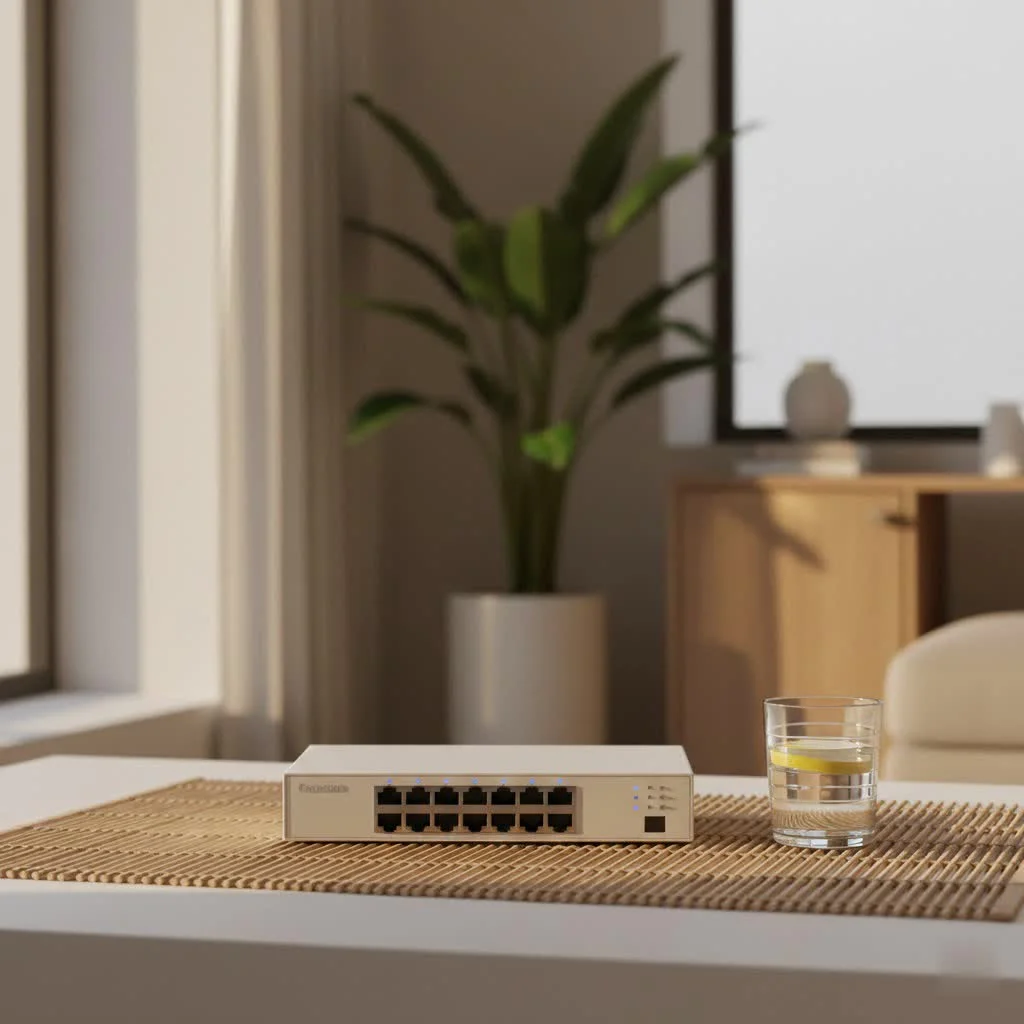
What is a Network Switch and Why Choose Ubiquiti UniFi?
A network switch connects devices in a computer network, intelligently filtering and forwarding data packets only to their intended destination, unlike a hub which broadcasts data to all connected devices. This significantly improves network efficiency and performance. Ubiquiti’s UniFi line stands out due to its powerful hardware, intuitive software, and cohesive ecosystem, ensuring seamless integration with other UniFi devices like access points and security gateways. All devices are managed from a single interface: the UniFi Network Controller, which simplifies complex network tasks for both beginners and seasoned professionals. For best network switches roundups on this site.
Exploring the Ubiquiti UniFi Switch Family
The UniFi switch ecosystem is vast and versatile, offering a switch for almost every networking scenario, from compact desktop units to rack-mounted enterprise powerhouses. All models are centrally managed by the UniFi Network Application.
UniFi Switch Lite and Flex Series: Compact Powerhouses
These series are the entry point into UniFi switching, ideal for smaller deployments, home offices, or extending network connectivity in tight spaces. They prioritize compact designs and silent operation.
- What are UniFi Switch Lite and Flex models known for? They are characterized by sleek, space-conscious designs, multiple Power over Ethernet (PoE) options, and flexibility for desk or wall mounting. Many operate silently due to fanless designs. The UniFi Switch Lite 16 PoE, for instance, offers a solid port count with PoE in a small footprint, while the USW-Flex-Mini is an affordable, small-scale solution.
UniFi Switch Pro Series: The Workhorse for Growing Networks
Stepping up in capability, the Pro series is built for bandwidth-intensive networks requiring more robust features and higher performance. These switches offer enterprise-level functionality without a prohibitive price tag.
- What advanced features do UniFi Pro switches offer? UniFi Pro switches, such as the USW-Pro-24, provide enhanced uplink capacity, often with SFP+ (10 Gbps) or SFP28 (25 Gbps) ports for fiber connectivity, and robust Layer 3 routing features. They also boast higher PoE budgets and often include Etherlighting™ for visual port status.
- What does “Layer 3” mean for a UniFi Pro switch? Layer 3 switches offer hardware-accelerated inter-VLAN routing, meaning they can efficiently manage traffic between different subnetworks (VLANs) directly at the switch level. This reduces reliance on an external router for these tasks and improves overall network performance.
UniFi Switch Enterprise Series: High-Capacity & Future-Proof
|
Our Picks for the Best Network Switch in 2026
As an Amazon Associate I earn from qualifying purchases.
|
||
| Num | Product | Action |
|---|---|---|
| 1 | TP-Link TL-SG105S-M2 - 5-Port Multi-Gigabit 2.5G Ethernet Switch - Unmanaged Network Switch - Ethernet Splitter - Plug & Play - Desktop/Wall Mount - Silent Operation |

|
| 2 | BrosTrend 2.5Gb Switch, 8 Port Network Switch 2.5 Gigabit, Unmanaged Ethernet Switch for Game Console, NAS, PC, Computer Networking Switch Plug & Play Fanless, Desktop Wall Mount, Lifetime Protection |
|
| 3 | NETGEAR 8-Port Gigabit Ethernet Unmanaged Essentials Switch (GS308) - Home Network Hub, Office Ethernet Splitter, Plug-and-Play, Silent Operation, Desktop or Wall Mount |
|
| 4 | TP-Link Litewave 5 Port Gigabit Ethernet Switch - Desktop Ethernet Splitter - Unshielded Network Switch - Plug & Play - Fanless Quiet - Unmanaged (LS1005G) |
|
| 5 | UGREEN Ethernet Switch, 5 Port Gigabit Ethernet Splitter, Plug & Play, Wall Mount & Desktop Network Switch Hub, Unmanaged, Compact, with LED, Fanless Quiet, for Internet Cable, Laptop, Router, NAS |
|
| 6 | TP-Link TL-SG105, 5 Port Gigabit Unmanaged Ethernet Switch, Network Hub, Ethernet Splitter, Plug & Play, Fanless Metal Design, Shielded Ports, Traffic Optimization |
|
| 7 | UGREEN 16 Port Gigabit Switch, Plug & Play Ethernt Switch, Standard/VLAN Mode, Unmanaged, Sturdy Metal, Fanless Quiet, Desktop & Wall Mount Network LAN Splitter Hub for Laptop, Printer, NAS, Router |
|
| 8 | TP-Link 8 Port Gigabit Ethernet Network Switch - Ethernet Splitter - Plug & Play - Fanless - Sturdy Metal w/ Shielded Ports - Traffic Optimization - Unmanaged - Lifetime Protection (TL-SG108) |
|
| 9 | TP-Link 5-Port Gigabit Ethernet Easy Smart Switch- Plug and Play - Desktop - Sturdy Metal w/Shielded Ports - Limited Lifetime Replacement (TL-SG105E), Black… |
|
| 10 | TP-Link 24 Port Gigabit Ethernet Switch Desktop/ Rackmount Plug & Play Shielded Ports Sturdy Metal Fanless Quiet Traffic Optimization Unmanaged (TL-SG1024S) |
|
At the pinnacle of the UniFi switch lineup, the Enterprise series is engineered for the most demanding environments, leveraging the latest networking technology.
- When should I consider a UniFi Enterprise switch? You should consider an Enterprise series switch for high-capacity networks, especially those deploying UniFi 6 or UniFi 7 access points, or requiring 2.5/10 Gbps RJ45 Ethernet ports and high-speed SFP28 interfaces for 25 Gbps uplinks. These are designed for scenarios where maximum data throughput and ultra-low latency are critical.
UniFi Switch Ultra and Mission Critical: Specialized Solutions
Ubiquiti also offers specialized switches like the Ultra and Mission Critical series, addressing specific deployment needs.
- What makes the UniFi Switch Ultra series unique? The UniFi Ultra Switch offers flexible variations, including models with significant PoE budgets like the Ultra 210W, designed to support multiple power-hungry PoE devices without concerns about the power budget.
- What is the purpose of the UniFi Switch Mission Critical? The Mission Critical switch is built for network resilience, featuring an internal battery and external backup connectors to deliver uninterruptible power. This ensures vital systems, such as UniFi Access or surveillance devices, remain online even during power outages.
Selecting the Right UniFi Switch for Your Needs
Choosing the perfect Ubiquiti switch involves evaluating your current and future network requirements. Consider where your network might be in a few years.
- Assess Port Count and Speed: Determine how many devices you need to connect and if you require Gigabit (1GbE), Multi-Gig (2.5/5/10GbE), or higher-speed uplinks (10/25/100G SFP/SFP28).
- Power over Ethernet (PoE) Requirements: Identify if you have devices like access points, IP cameras, or VoIP phones that need power over the Ethernet cable. Ensure your chosen switch supports the necessary PoE standard (802.3af, 802.3at PoE+, 802.3bt PoE++) and has an adequate total power budget.
- Managed vs. Unmanaged: Most UniFi switches are managed, offering advanced control over network traffic, VLANs, QoS, and security, which is paramount for network optimization.
- Rack-Mount vs. Desktop: Consider your physical installation. Do you need a rack-mountable switch for a server closet, or a compact desktop/wall-mounted unit for a smaller space?
- Budget: UniFi offers options across various price points, balancing features and performance.
Expert Insight:
“Selecting the right UniFi switch isn’t just about raw specs; it’s about understanding your network’s pulse. Think about your data flow, your future growth, and the critical devices that demand unwavering power and connectivity. A well-chosen Ubiquiti switch is an investment in stability and performance.” – Dr. Linh Nguyen, Senior Network Architect at VGLan.com
Basic Installation and Configuration of a UniFi Switch
Getting your Ubiquiti switch up and running is straightforward, thanks to the intuitive UniFi ecosystem.
Step-by-Step Installation:
- Physical Placement: Choose a location that allows for proper ventilation and easy cable management.
- Power Connection: Connect the power cord to the switch and a power outlet.
- Network Uplink: Connect an Ethernet cable from your router (or DHCP server/LAN) to any port on the UniFi switch. For optimal performance, especially with Pro or Enterprise models, consider using SFP/SFP+ ports for uplinking if available.
- Connect Devices: Plug your network devices (computers, access points, cameras) into the remaining Ethernet ports. If your switch supports PoE, devices like UniFi access points will automatically receive power.
Initial Configuration with UniFi Network Application:
The UniFi Network Application (Controller) is your central command center.
- Install Controller: Download and install the latest UniFi Network Application on a computer or deploy a UniFi Cloud Key or Dream Machine.
- Access Controller: Open the UniFi Network Application and log in. Ensure your management station is on the same Layer 2 network as your UniFi switch for initial adoption.
- Adopt the Switch: In the UniFi Controller dashboard, navigate to the “Devices” section. Your newly connected UniFi switch should appear as “Pending Adoption.” Click “Adopt.” The System LED on the switch will turn blue once successfully adopted.
- Configure Settings: Once adopted, you can dive into advanced configurations:
- VLANs: Create and assign VLANs to segment your network for security and efficiency.
- PoE Settings: Adjust PoE settings per port if needed (e.g., enabling 24V passive PoE for older devices, with caution).
- Port Naming & Profiles: Label ports for easy identification and apply port profiles for quick configuration of specific device types.
- Jumbo Frames & Flow Control: Optimize for specific network traffic types.
Common Issues and Troubleshooting Tips for UniFi Switches
Even the most reliable Ubiquiti switch can encounter hiccups. Here are some common issues and how to resolve them:
- Switch Not Adopting:
- Check Power & Connectivity: Ensure the switch is powered on and properly connected to the network where the UniFi Controller resides.
- DHCP Server: Verify that your network has a DHCP server assigning IP addresses.
- Firewall: Temporarily disable firewalls on the UniFi Controller host to rule out communication blocks.
- Factory Reset: If all else fails, perform a factory reset by holding the reset button for at least five seconds.
- PoE Devices Not Powering On:
- PoE Budget: Check the switch’s total PoE budget and per-port power limits in the UniFi Controller. Ensure you haven’t exceeded the capacity.
- Cable Quality: Use high-quality Ethernet cables (CAT5e or higher) as power loss can occur over poor cabling or long distances.
- Device Compatibility: Confirm the connected device supports the PoE standard supplied by the switch (e.g., 802.3af/at/bt).
- Slow Network Performance:
- Cable Issues: Inspect all Ethernet cables for damage or loose connections.
- Loop Detection: Ensure you haven’t created a network loop, which can cripple performance. UniFi switches often have built-in loop protection.
- Bandwidth Usage: Use the UniFi Network Application to monitor port usage and identify bandwidth-hogging devices.
- Firmware Update: Ensure your switch firmware is up to date, as updates often include performance enhancements and bug fixes.
Frequently Asked Questions (FAQ)
Q1: What is the UniFi Network Controller and why is it essential for an Ubiquiti switch?
A1: The UniFi Network Controller is a software platform or hardware appliance (like a Cloud Key) that provides a centralized interface for managing your entire UniFi network, including all your UniFi switches. It’s essential because it allows for easy configuration, monitoring, firmware updates, and troubleshooting of your Ubiquiti switch and other UniFi devices from a single dashboard.
Q2: Can I use an Ubiquiti UniFi switch with non-UniFi networking equipment?
A2: Yes, you can. UniFi switches function as standard network switches and can connect to and pass traffic for any compatible network device, regardless of brand. However, for seamless management and to unlock the full potential of features like advanced network topology mapping and unified device settings, Ubiquiti switches work best within an all-UniFi ecosystem.
Q3: What is PoE and why is it important for a UniFi switch?
A3: PoE (Power over Ethernet) allows electrical power to be transmitted along with data on Ethernet cables. It’s crucial for UniFi switches because many Ubiquiti devices, such as UniFi access points, cameras, and VoIP phones, are designed to be powered via PoE, simplifying installation and reducing the need for separate power outlets and adapters.
Q4: Are Ubiquiti UniFi switches considered Layer 2 or Layer 3?
A4: UniFi offers both Layer 2 and Layer 3 switches. Most basic and Lite models are Layer 2, handling data at the MAC address level. However, many Pro and Enterprise series UniFi switches are Layer 3, meaning they can perform advanced routing functions between different VLANs directly at the switch, which enhances network performance and design flexibility.
Q5: How often should I update the firmware on my Ubiquiti UniFi switch?
A5: It’s generally recommended to keep your UniFi switch firmware updated to the latest stable version. Firmware updates often include security patches, performance improvements, and new features. Always check release notes before updating and consider staging updates during off-peak hours to minimize potential disruptions.
Conclusion
Ubiquiti UniFi switches offer a compelling solution for anyone looking to build a robust, scalable, and intelligently managed network. With a diverse range of models catering to every need, from a simple home setup to a complex enterprise infrastructure, an Ubiquiti switch provides the performance, features, and centralized control that modern networks demand. By understanding the different types, carefully selecting the right model, and mastering the basics of installation and configuration, you can unlock the full potential of your network. Embrace the power of UniFi and confidently take control of your digital landscape.
Frequently Asked Questions
What is the UniFi Network Controller and why is it essential for an Ubiquiti switch?
The UniFi Network Controller is a software platform or hardware appliance that provides a centralized interface for managing your entire UniFi network, including all your UniFi switches. It is essential because it allows for easy configuration, monitoring, firmware updates, and troubleshooting of your Ubiquiti switch and other UniFi devices from a single dashboard, simplifying network administration.
Can I use an Ubiquiti UniFi switch with non-UniFi networking equipment?
Yes, you can use UniFi switches with non-UniFi networking equipment. UniFi switches function as standard network switches and can connect to and pass traffic for any compatible network device, regardless of brand. However, for seamless management and to unlock the full potential of features like advanced network topology mapping, Ubiquiti switches work best within an all-UniFi ecosystem.
What is PoE and why is it important for a UniFi switch?
PoE (Power over Ethernet) allows electrical power to be transmitted along with data on Ethernet cables. It is crucial for UniFi switches because many Ubiquiti devices, such as UniFi access points, cameras, and VoIP phones, are designed to be powered via PoE, simplifying installation and reducing the need for separate power outlets and adapters.
Are Ubiquiti UniFi switches considered Layer 2 or Layer 3?
UniFi offers both Layer 2 and Layer 3 switches. Most basic and Lite models are Layer 2, handling data at the MAC address level. However, many Pro and Enterprise series UniFi switches are Layer 3, meaning they can perform advanced routing functions between different VLANs directly at the switch, which enhances network performance and design flexibility.
How often should I update the firmware on my Ubiquiti UniFi switch?
It is generally recommended to keep your UniFi switch firmware updated to the latest stable version. Firmware updates often include security patches, performance improvements, and new features. Always check release notes before updating and consider staging updates during off-peak hours to minimize potential disruptions.
Get our weekly buyer guide
Practical specs, not advice. Unsubscribe anytime.

These UniFi switches are a game-changer for small businesses. We recently upgraded our office network, and the difference in efficiency is noticeable. Data packets are flowing smoothly, and we haven’t had any of the bottlenecks we used to experience. My only minor gripe is that the initial learning curve for some of the advanced features took a bit of time to get used to, but once you’re in, it’s powerful.
I got a Ubiquiti UniFi switch to replace an old hub, hoping for a big improvement in my home office setup. While it does filter and forward data packets much better, I found the price point a little higher than I expected for a basic home user. It works well, but I wish there were more budget-friendly options within the UniFi ecosystem for those of us not running a huge enterprise network.
I’ve been using Ubiquiti UniFi switches for my home network for about a year now, and they’ve been fantastic. The setup was surprisingly straightforward, even for someone like me who isn’t an IT professional. I really appreciate how it simplifies managing all my connected devices, especially with all the smart home tech I have. Definitely a solid choice for anyone looking to upgrade their network backbone.
Ubiquiti has really delivered on professional-grade performance with their UniFi line. I’ve been in IT for over two decades, and the ease of deployment and ongoing management with these switches is truly impressive. It’s a reliable foundation for any digital environment, whether you’re a network enthusiast or managing a complex business infrastructure. Highly recommend for its robust capabilities.